
Team & settings
Add and find employees
Search the team, filter by store or role, and add an employee with the intended access.
Before you begin
- Who can use this
- Users permitted to manage Employees
- You'll need
- The employee’s name, email address, and phone number
- A role selected in advance
- At least one store assignment
- A secure way to communicate the employee password
Review the existing team first
- 1
Open Employees
Use Employees Management to review team members and store assignments.
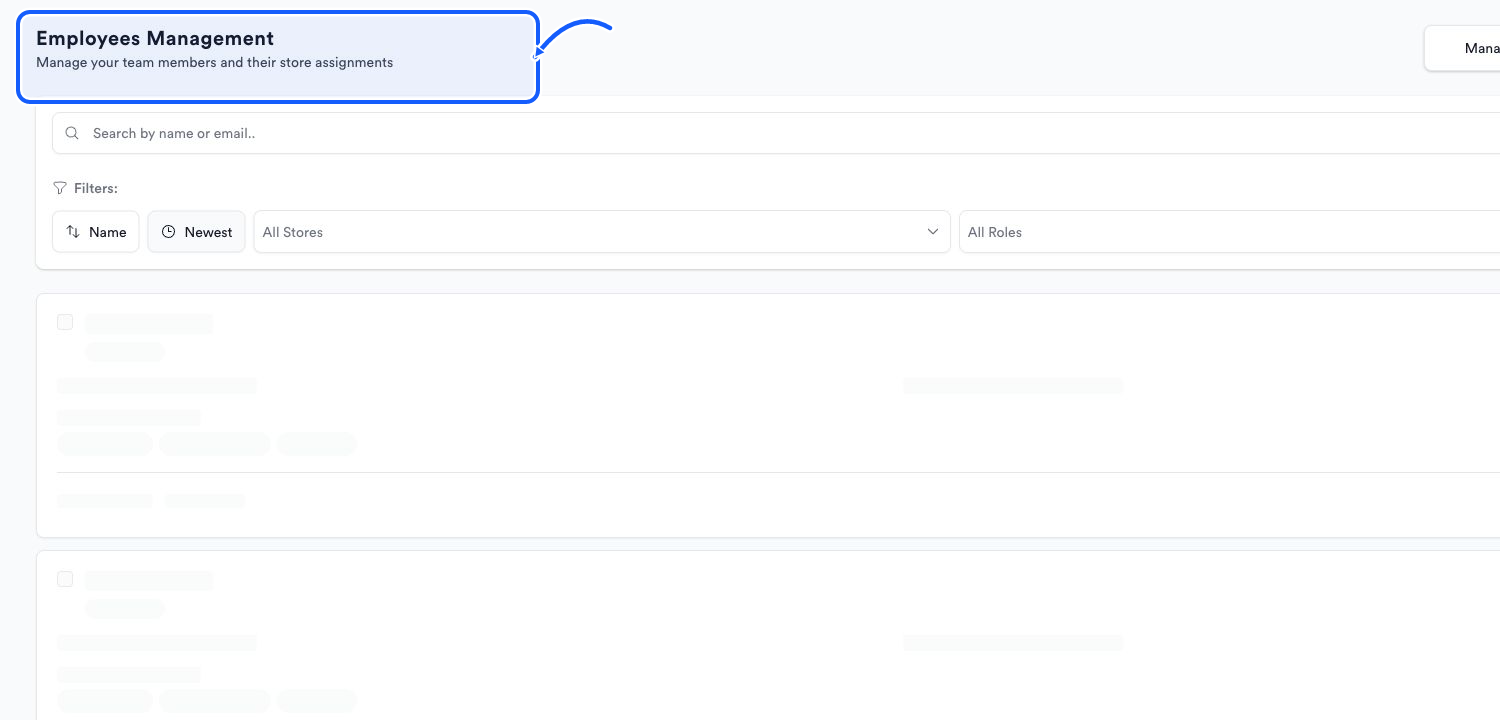
The highlighted area shows where to click. - 2
Search and filter
Search by name or email, then use Name, Newest, All Stores, and All Roles to narrow the list.
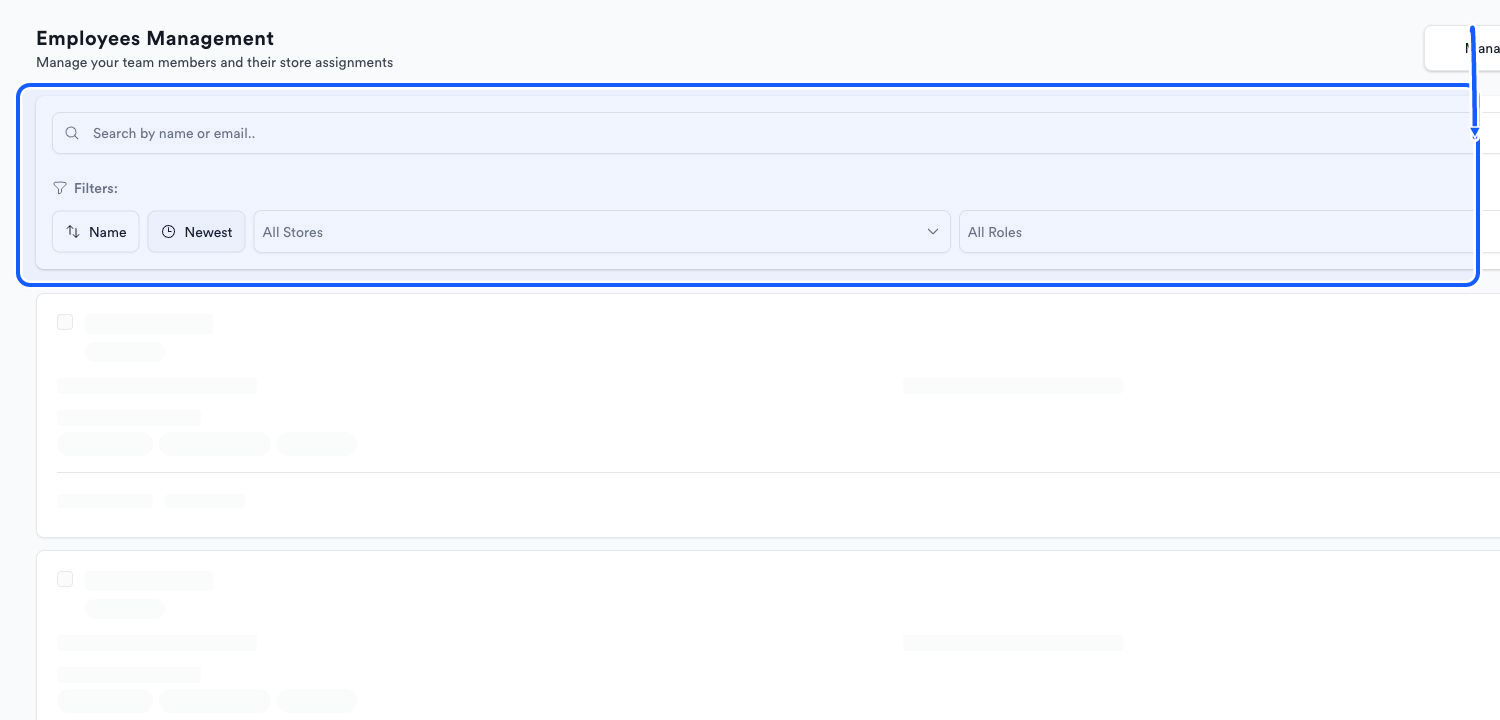
The highlighted area shows where to click. - 3
Choose the role before adding
Open Manage Roles when you need to review built-in roles or prepare a custom role first.
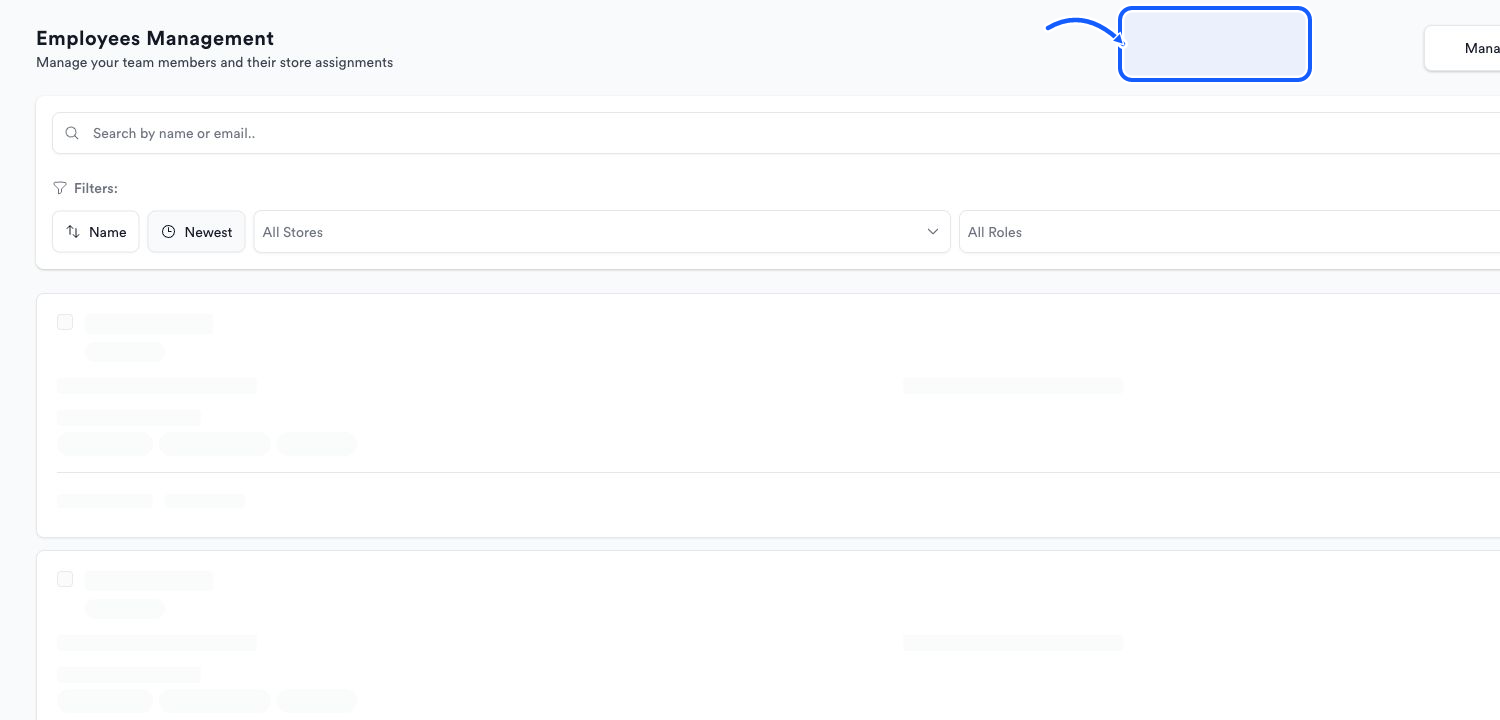
The highlighted area shows where to click.
Add the employee
- 1
Open Add Employee
Choose Add Employee from Employees Management.
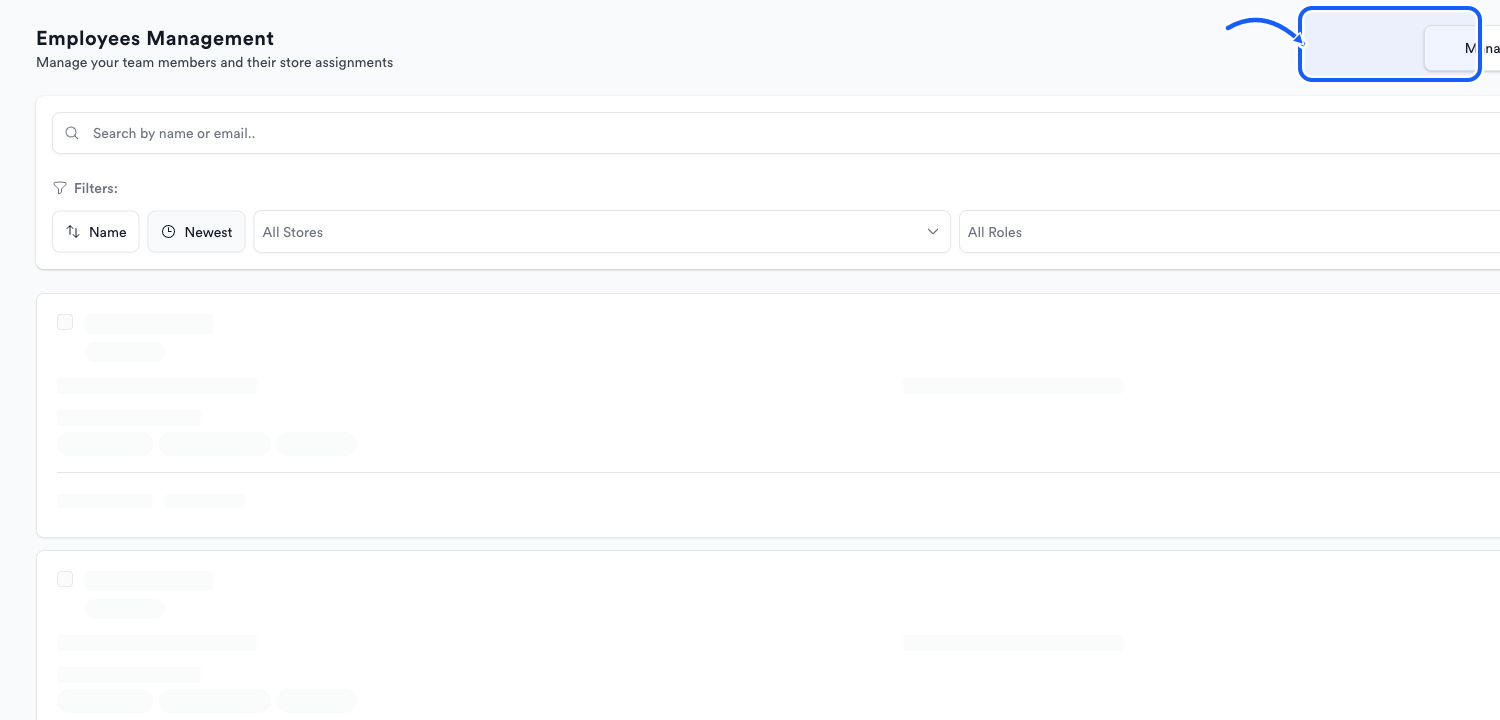
The highlighted area shows where to click. - 2
Enter the profile
Complete First Name, Email Address, and Phone Number; add Last Name when available.
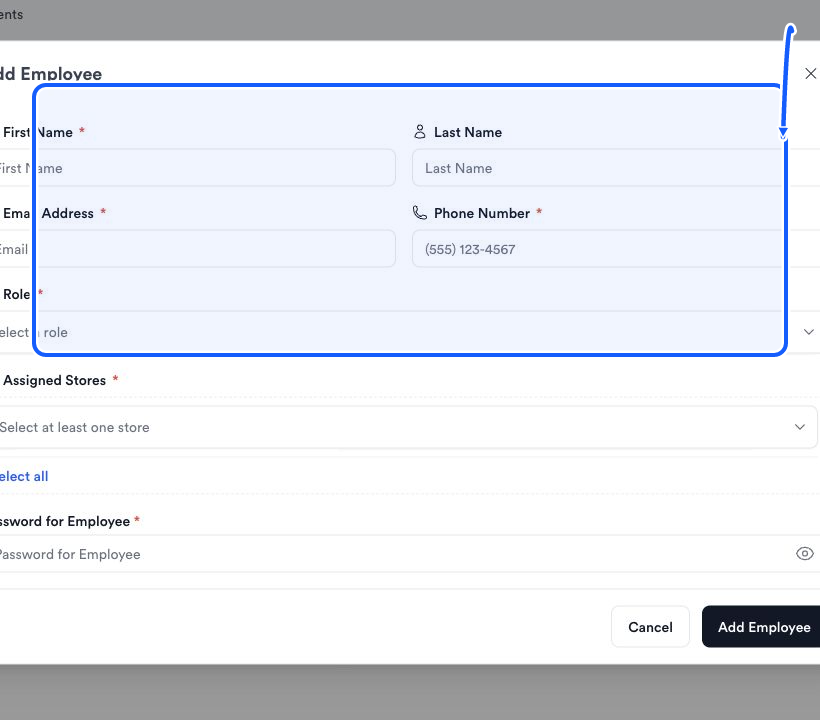
The highlighted area shows where to click. - 3
Assign access
Choose one Role and at least one Assigned Store.
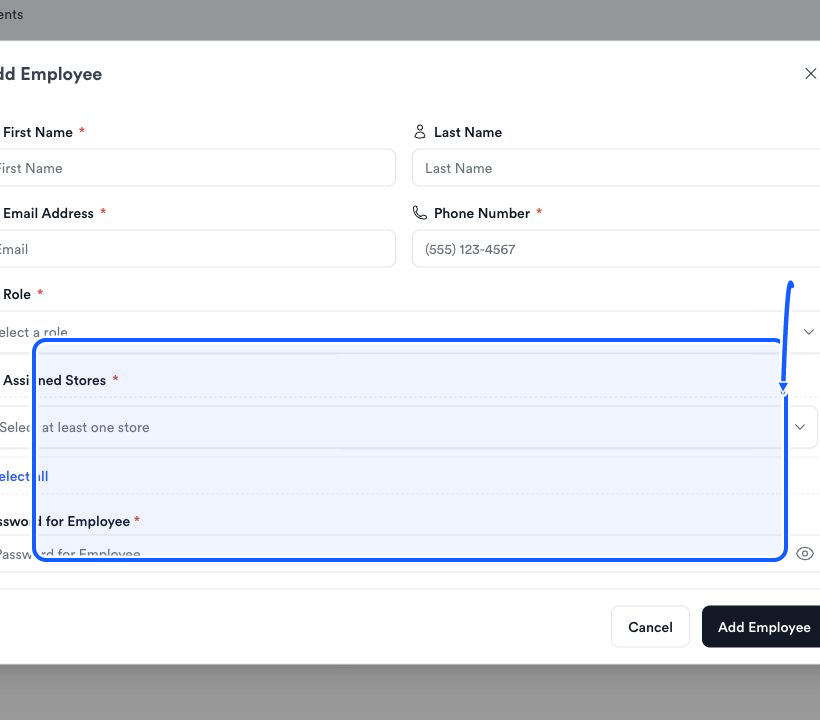
The highlighted area shows where to click. - 4
Set the password
Enter Password for Employee and communicate it through your organization’s secure channel.
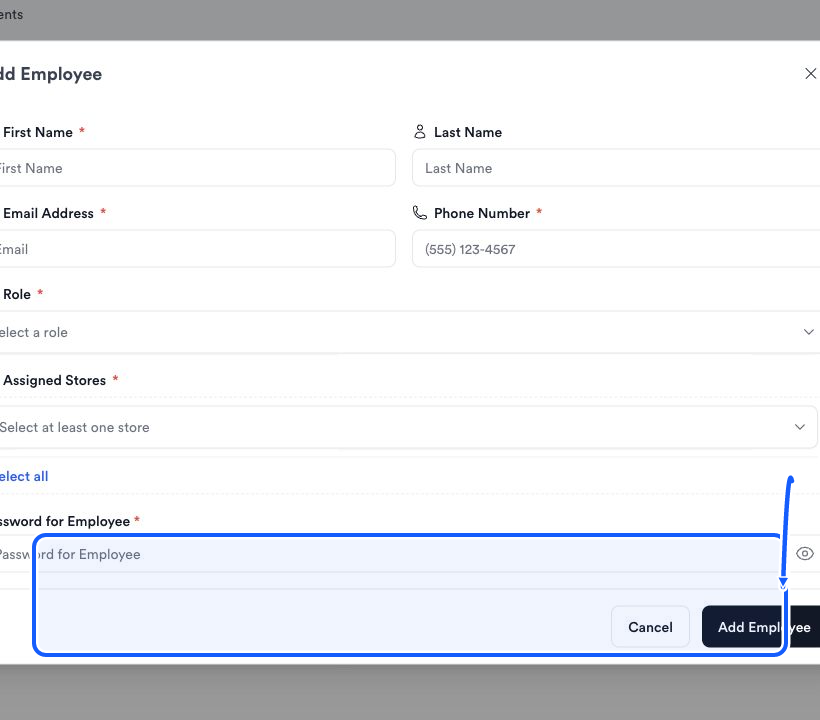
The highlighted area shows where to click. - 5
Review and add
Verify the email, phone, role, stores, and password, then choose Add Employee.
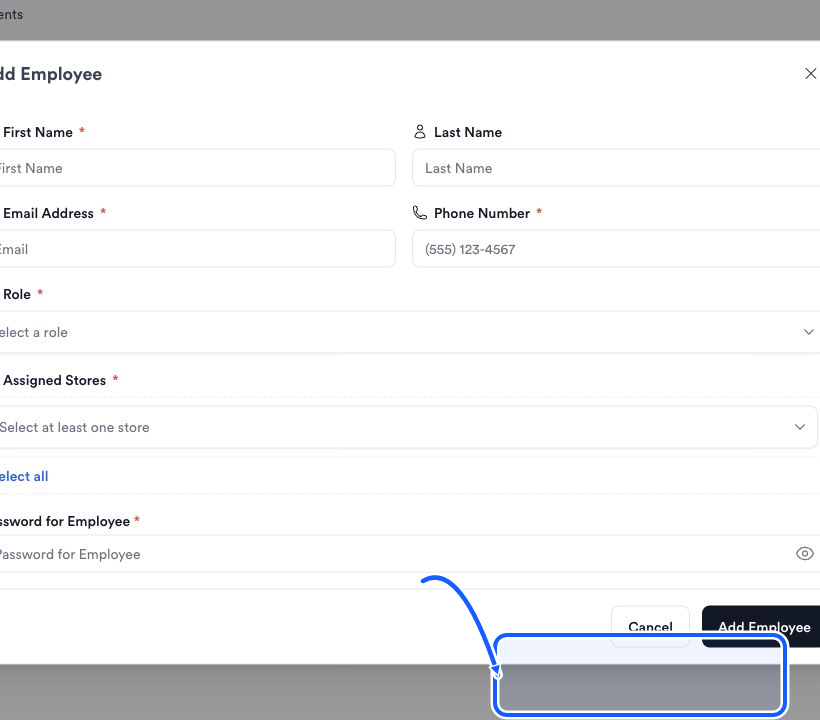
The highlighted area shows where to click.
You're done when
The employee appears in Employees Management with the intended role and store assignment.
Common fixes
If Add Employee is unavailable, confirm that your role includes employee management.
If submission is blocked, recheck required First Name, Email Address, Phone Number, Role, Assigned Stores, and Password for Employee fields.
If the correct role does not exist, create a custom role before adding the employee.