
Deposits, reports & exceptions
Review ACH returns
Find returned ACH payments, read the return code reference, and export the filtered returns report.
Before you begin
- Who can use this
- Users permitted to view Returns
- You'll need
- A customer name, transaction ID, return code, or date period
- The person responsible for following up on returned payments
Investigate the return
- 1
Open Returns
Read ACH Return Notifications for the count of returned transactions requiring attention.
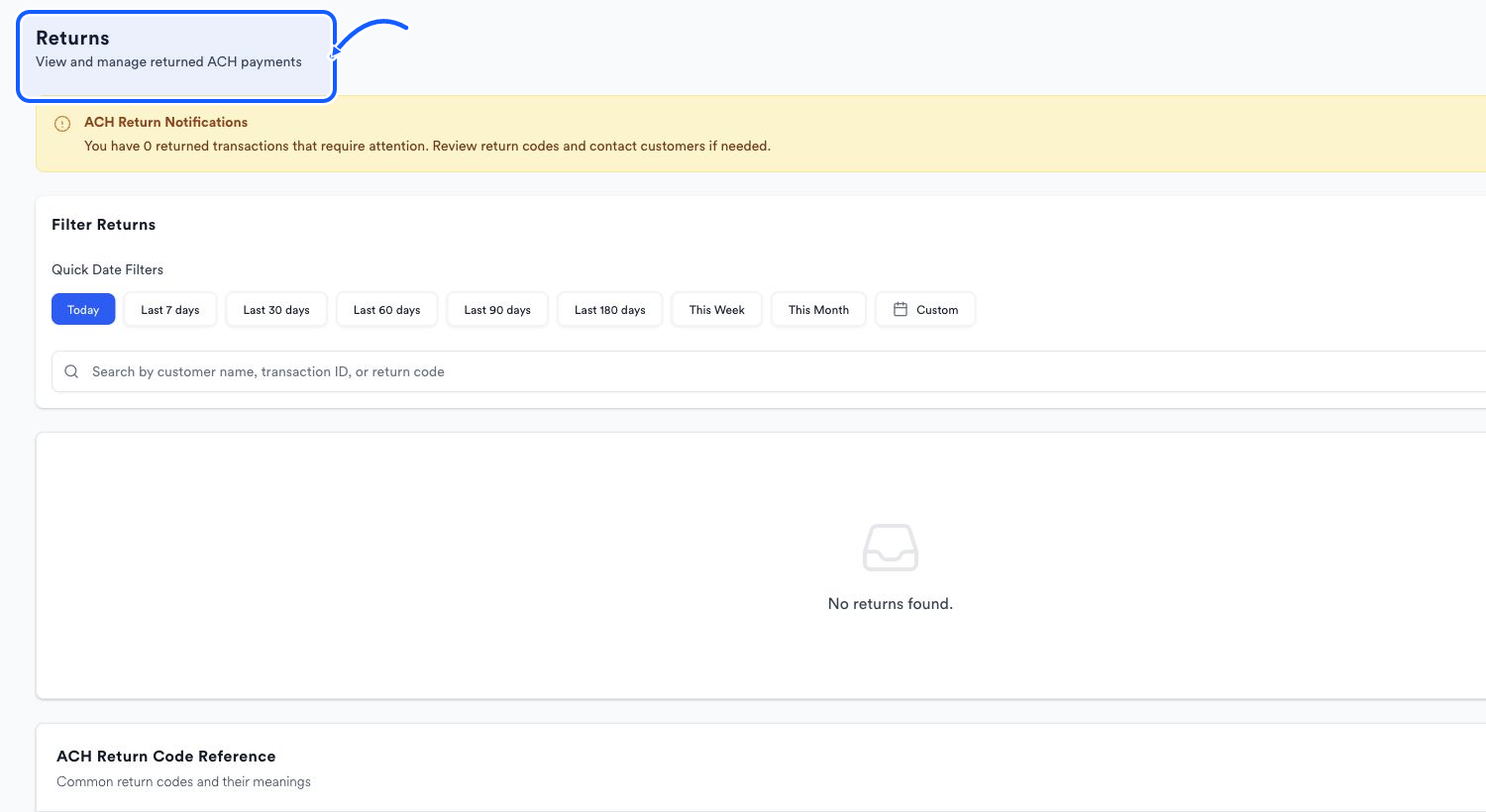
The highlighted area shows where to click. - 2
Filter and search
Choose a quick or Custom date range, then search by customer name, transaction ID, or return code.
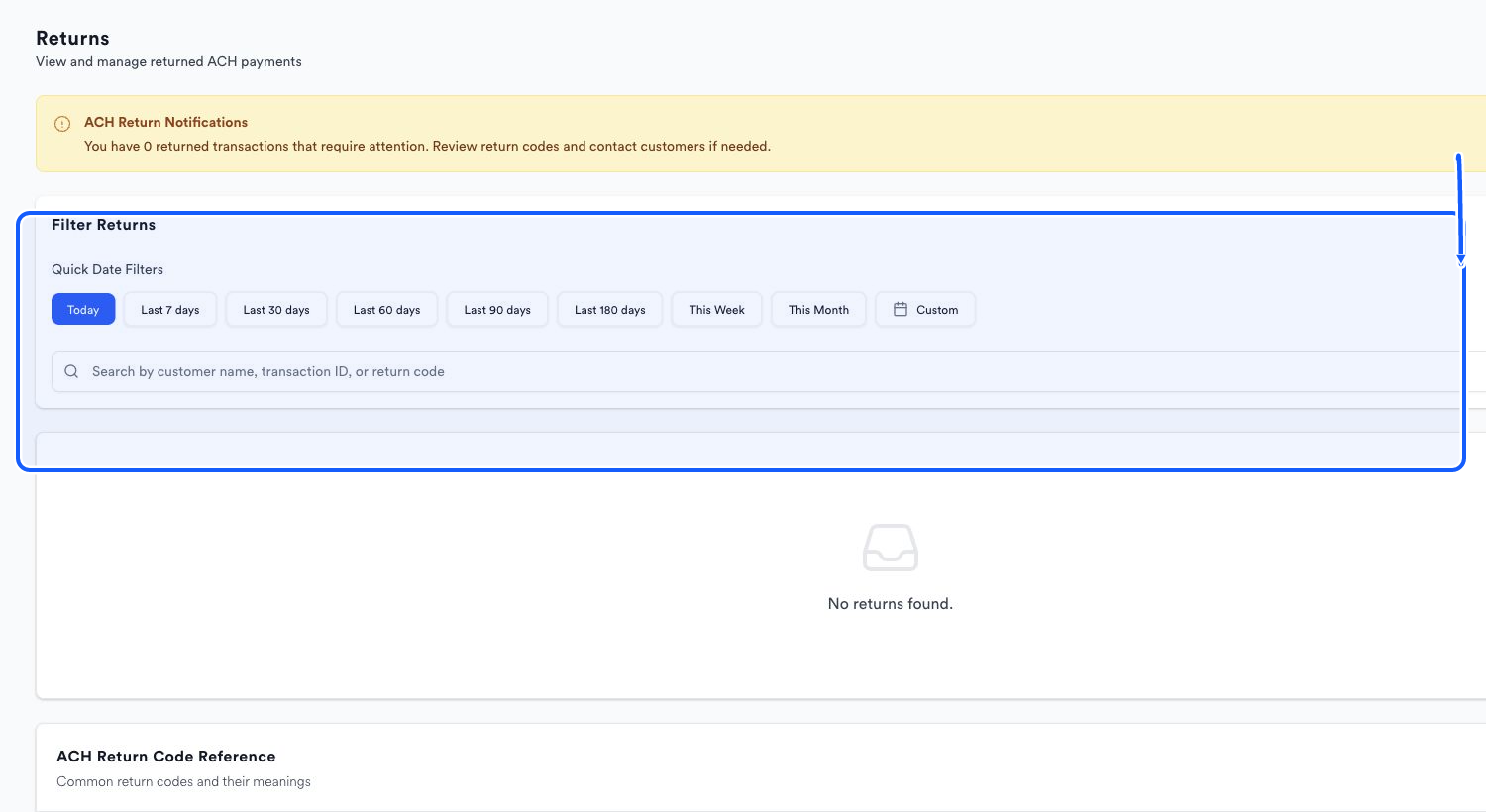
The highlighted area shows where to click. - 3
Read the code reference
Use ACH Return Code Reference to identify the reason and time frame displayed for the code.
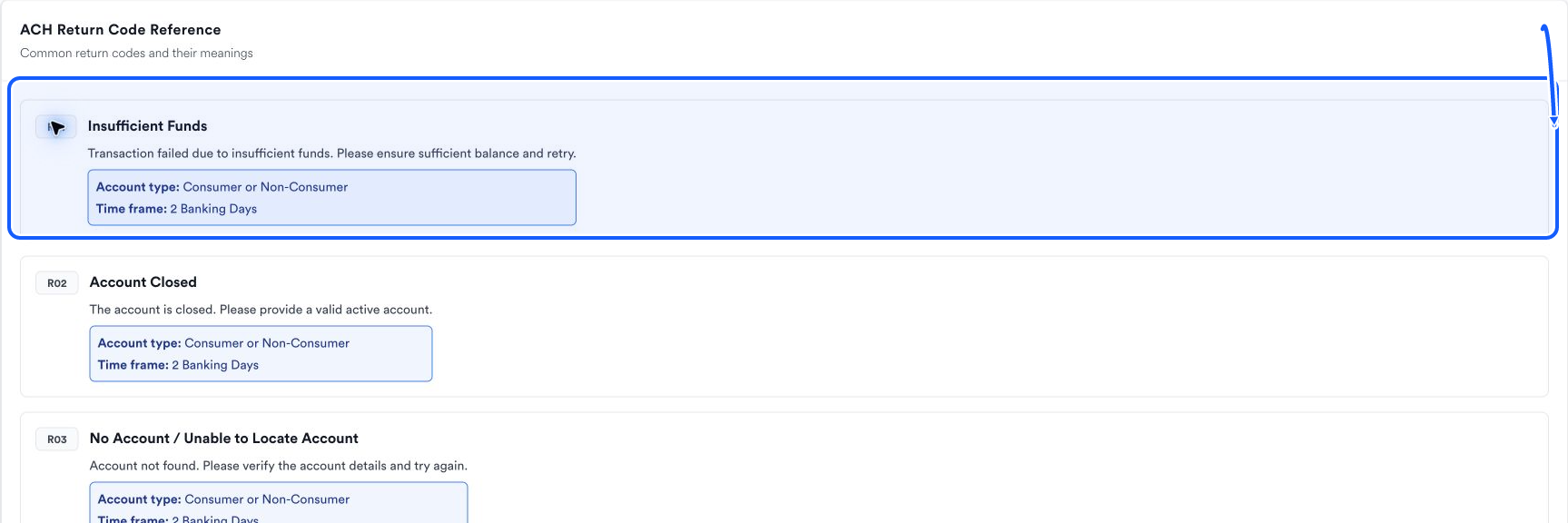
The highlighted area shows where to click. - 4
Export the current report
Choose Export to preserve the filtered returns view for follow-up.
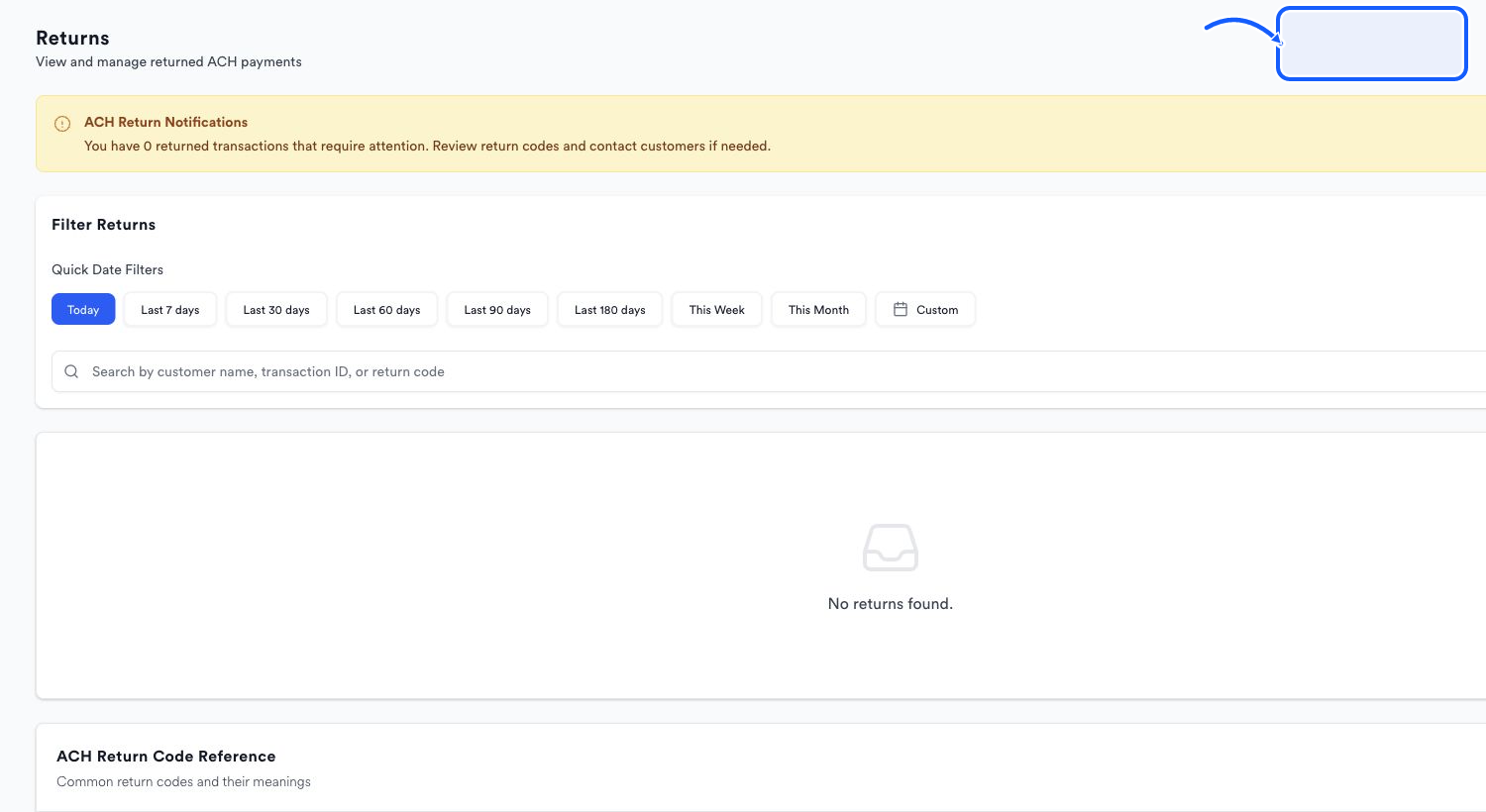
The highlighted area shows where to click.
You're done when
The return is isolated and its displayed code context is available for the appropriate internal follow-up.
Common fixes
If the notification count is nonzero but the list is empty, clear the search and widen the date range.
If a code is not visible in the current filtered view, search with the transaction ID and review the returned record.
If the code reference does not answer your question, use Need Help in Quickvee Pay.