
Start here
What is Quickvee Pay?
Learn what you can do in Quickvee Pay and where to find payments, customers, deposits, reports, returns, and account settings.
Before you begin
- Who can use this
- Quickvee Pay merchants and their authorized team members
- You'll need
- Access to an active Quickvee Pay merchant workspace
- The correct store selected before reviewing or creating records
A merchant workspace for ACH activity
Quickvee Pay lets your business collect and send ACH payments and track activity from one dashboard.
- Create Payment starts a one-time or recurring ACH debit or credit.
- Customers stores the customer profile and bank account information used by payment flows.
- Transactions, Deposits, Returns, and Disputes separate payment activity, settlements, returned ACH payments, and disputes.
- Reports summarizes settled and ongoing activity, sales, fees, deposits, and user performance.
- Employees and Settings provide team, role, store, business, and processing context.
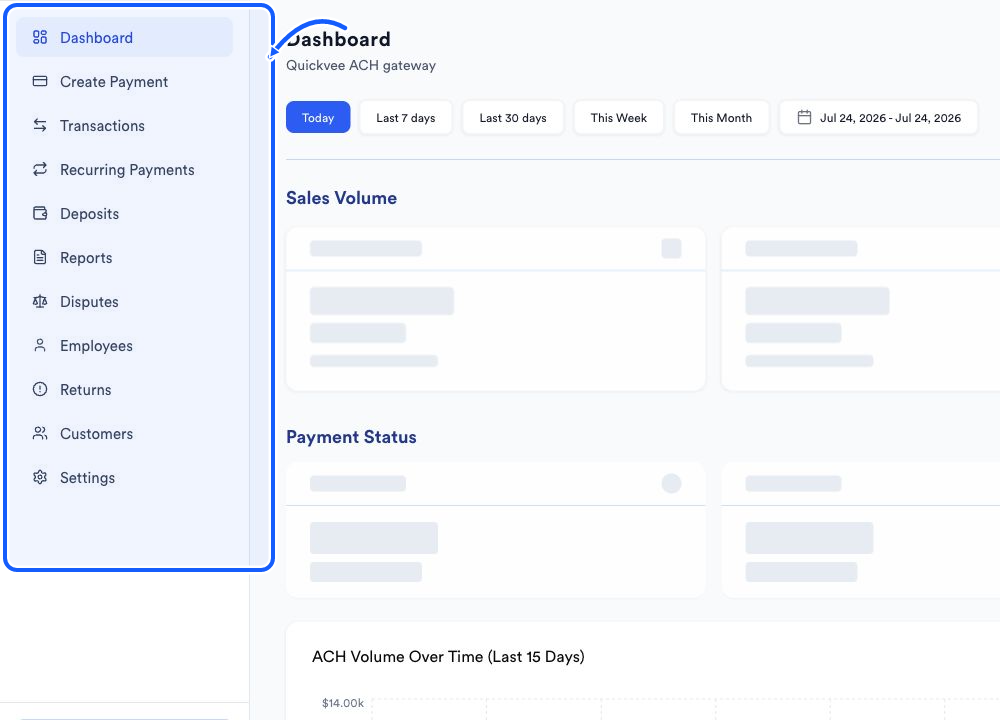
Start with the right store
- 1
Confirm the store
Open the store selector and choose the store whose activity you intend to review.
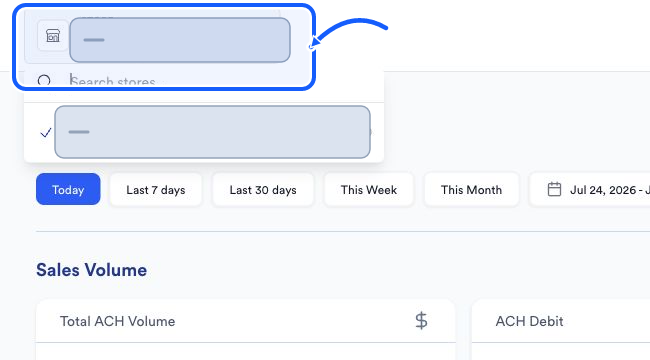
The highlighted area shows where to click. - 2
Review the Dashboard
Choose a date range, then compare Sales Volume with Payment Status before opening a detailed page.
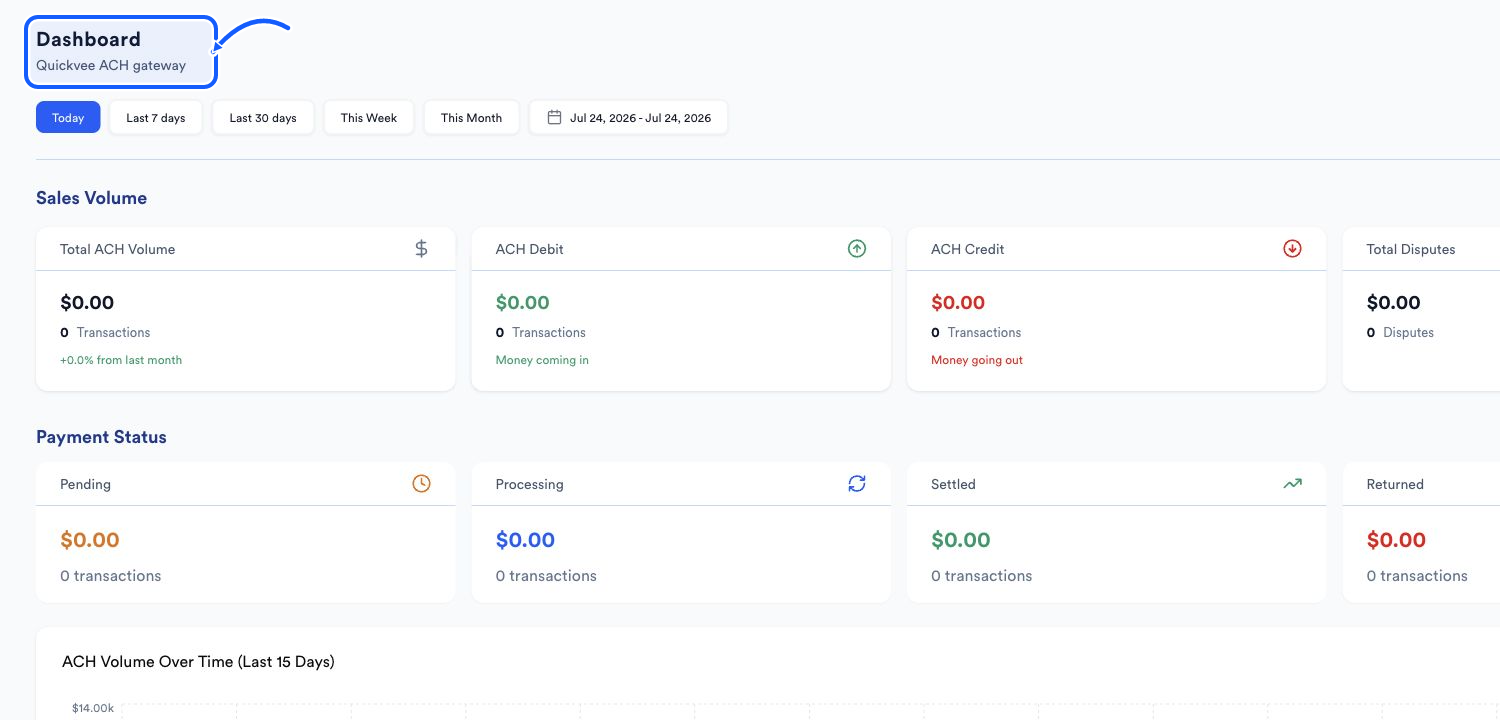
The highlighted area shows where to click. - 3
Prepare customers before payments
Use Customers to add the profile and bank information needed by Create ACH Payment.
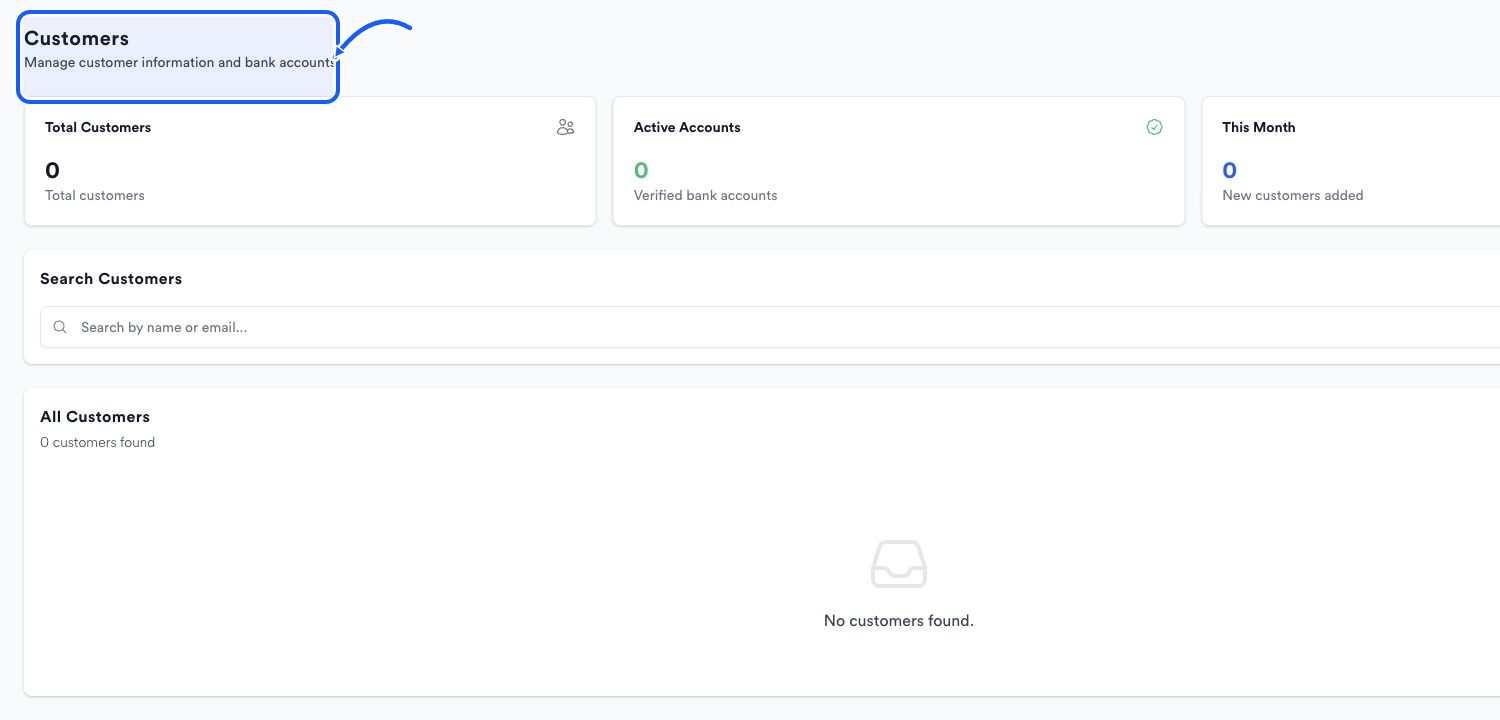
The highlighted area shows where to click. - 4
Use the matching detail page
Open Transactions for payment records, Deposits for settlement records, and Returns or Disputes when a payment needs attention.
The highlighted area shows where to click.
You're done when
You can identify the correct store and choose the Quickvee Pay page that matches the work you need to do.
Common fixes
If totals look unfamiliar, confirm the active store and date range before changing filters.
If a navigation item or action is missing, your assigned role may not include that page.
If a page is empty, broaden its date range or clear its search and status filters; an empty merchant can also legitimately have no records.