
Deposits, reports & exceptions
Run and export reports
Use Summary Report, Sales Report, and User Report with the correct date, status, and sort controls.
Before you begin
- Who can use this
- Users permitted to view Reports
- You'll need
- The correct store selected
- A confirmed reporting period
- A destination for the exported Excel file when an offline copy is needed
Choose the report for the question
- 1
Use Summary Report for financial totals
Set the date range, then review Settled Transactions such as ACH Debits, ACH Credits, Net Sales, Total Fees, and Net Deposits, plus the Ongoing Transactions section.
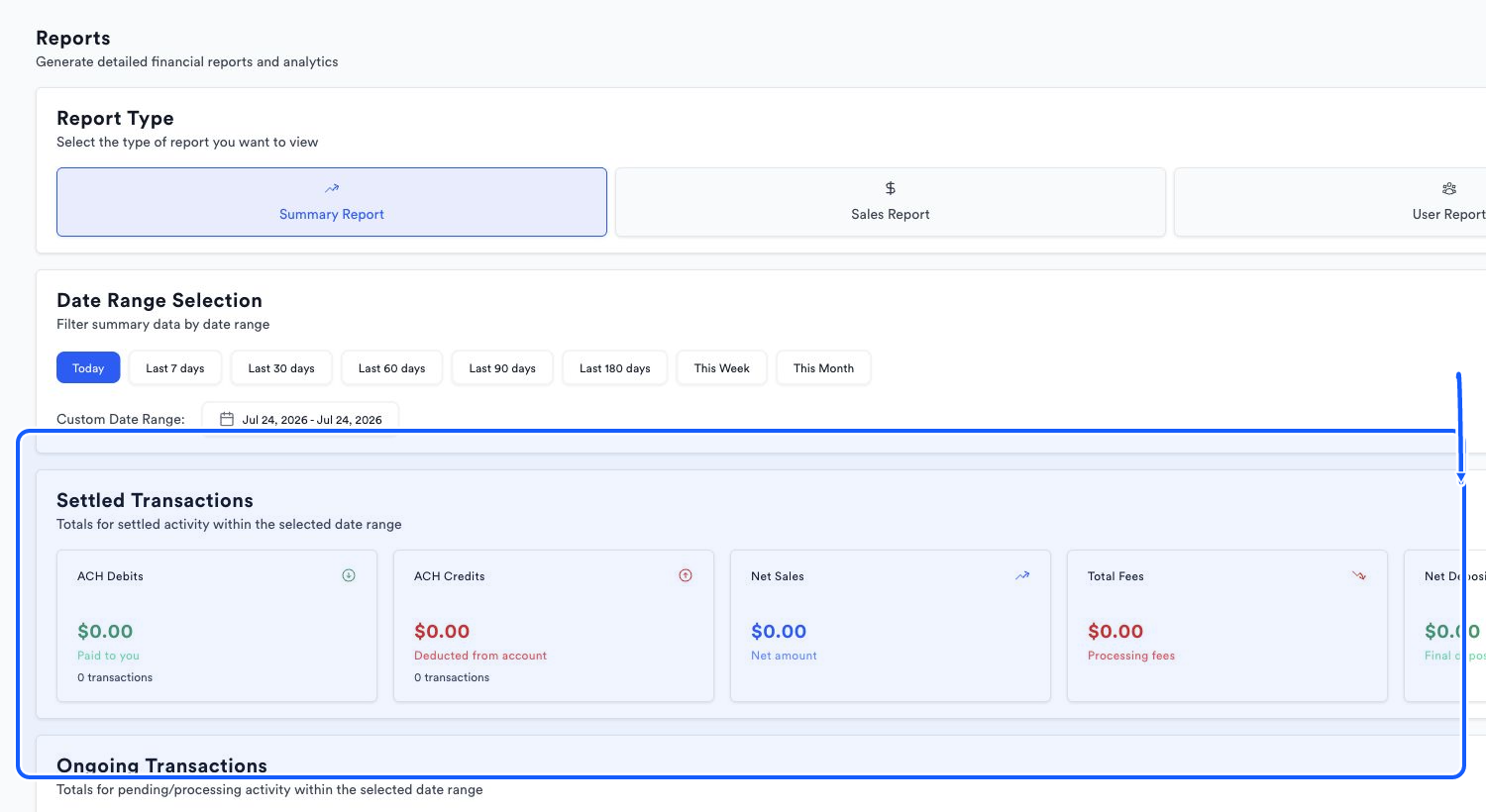
The highlighted area shows where to click. - 2
Use Sales Report for transaction detail
Review Total Debits, Total Credits, and Net Sales, then set the Sales Breakdown by Type date, Date (Newest First) sort, and All Statuses filter.
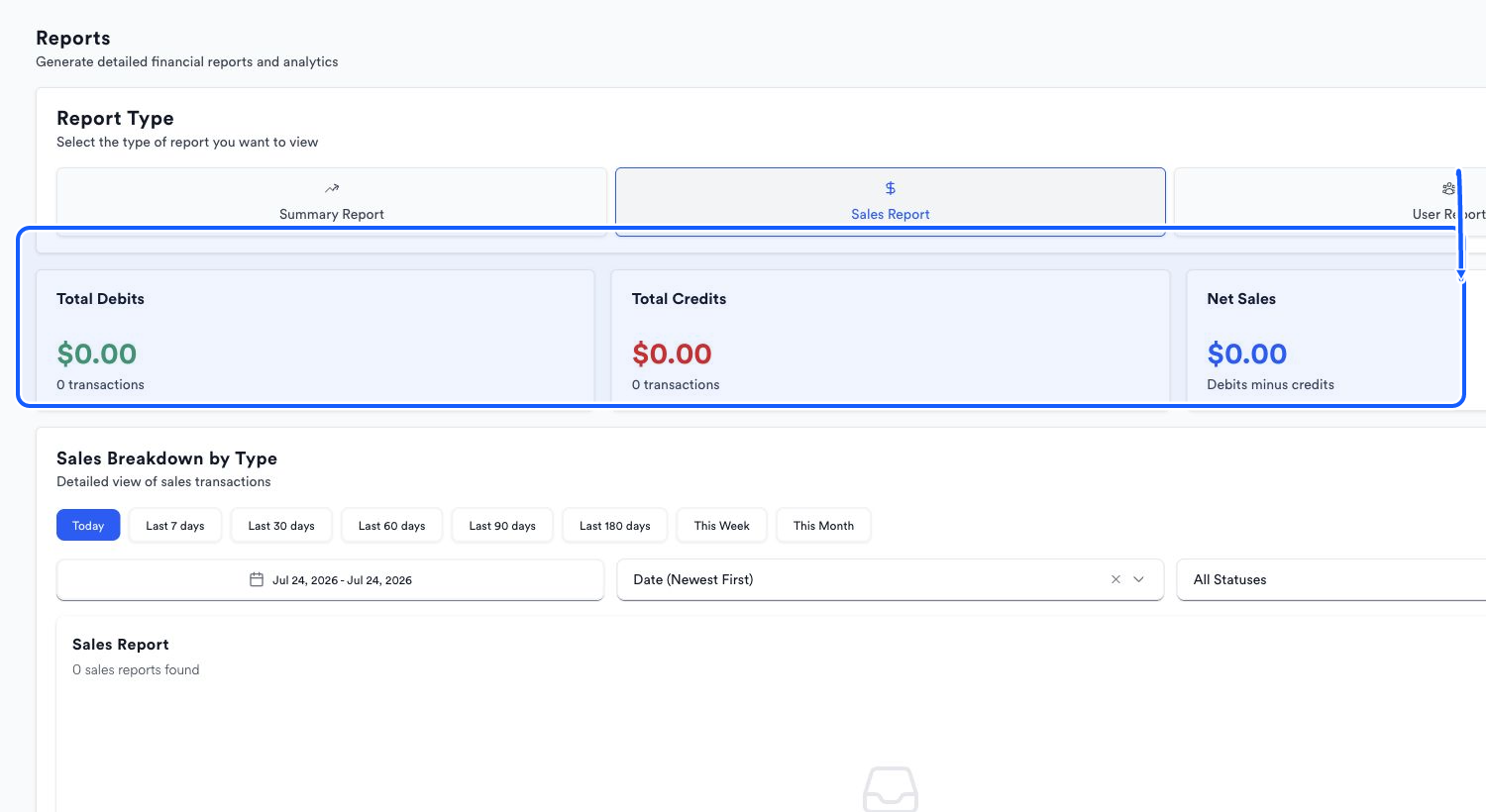
The highlighted area shows where to click. - 3
Use User Report for team statistics
Set a quick or custom date range to review transaction statistics by clerk, server, or user.
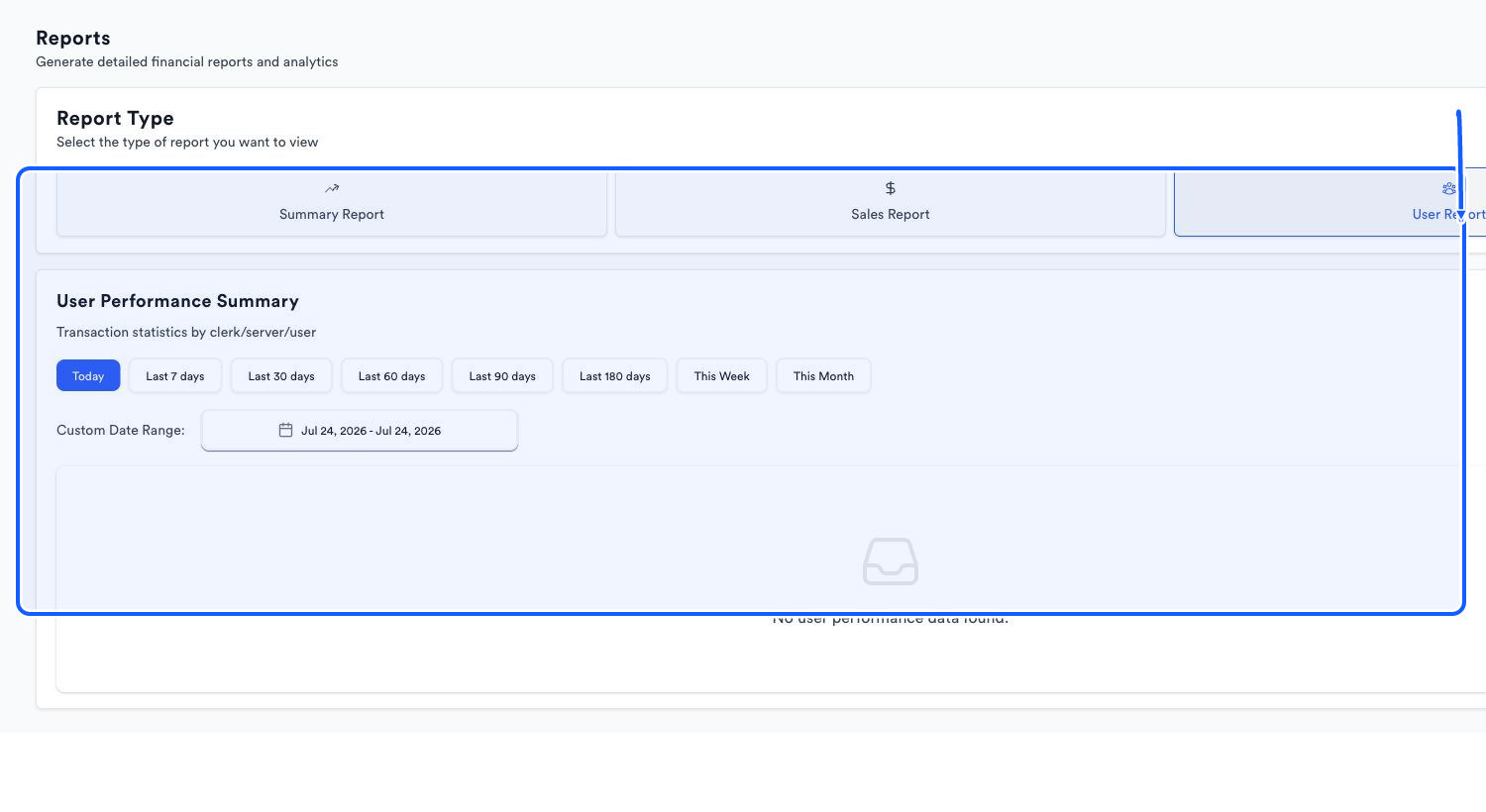
The highlighted area shows where to click.
Check the report before exporting
- 1
Confirm the report type
Check that Summary Report, Sales Report, or User Report is visibly selected.
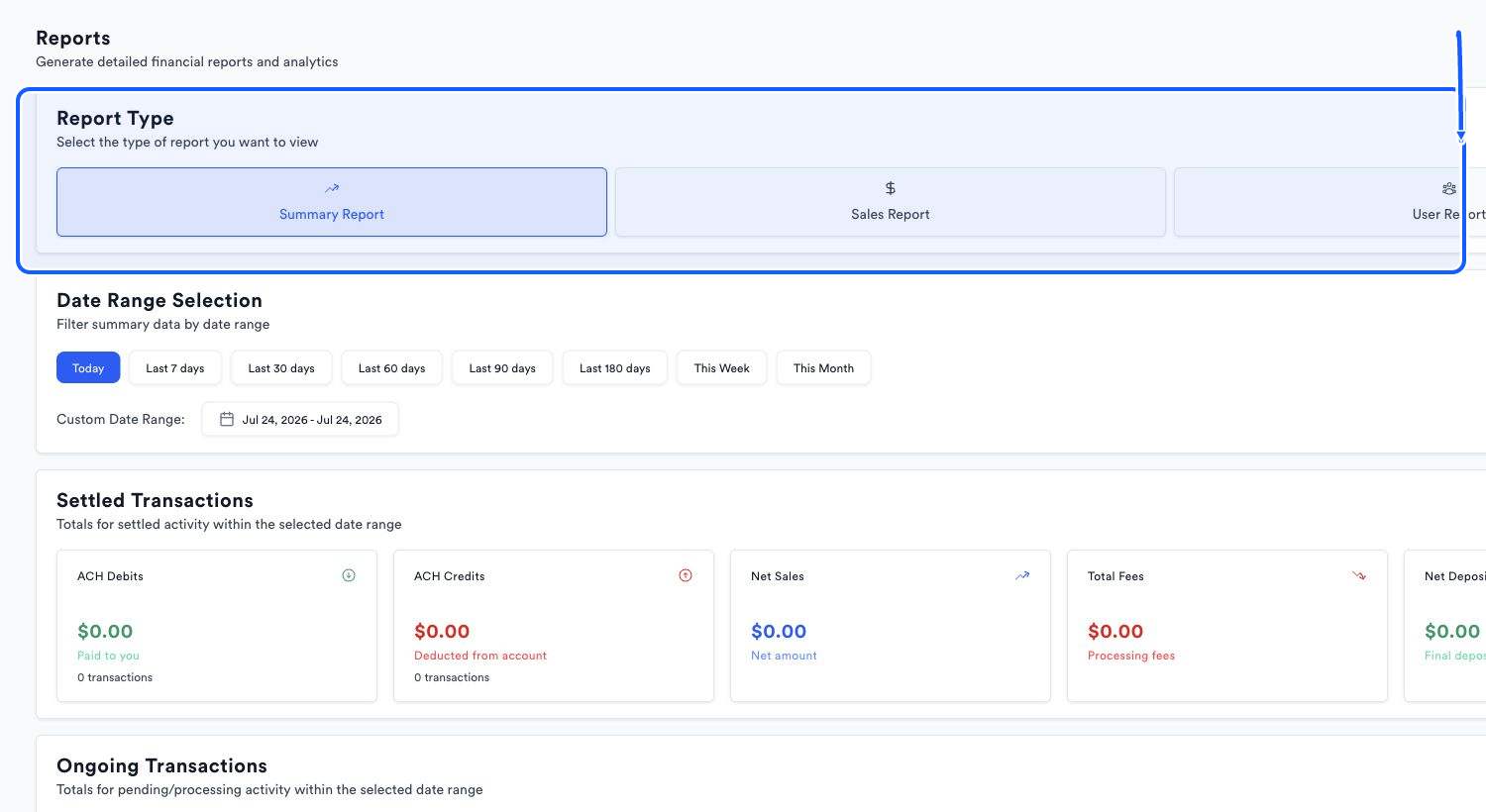
The highlighted area shows where to click. - 2
Confirm the filters
Review the date range and, where offered, the sort and status values.
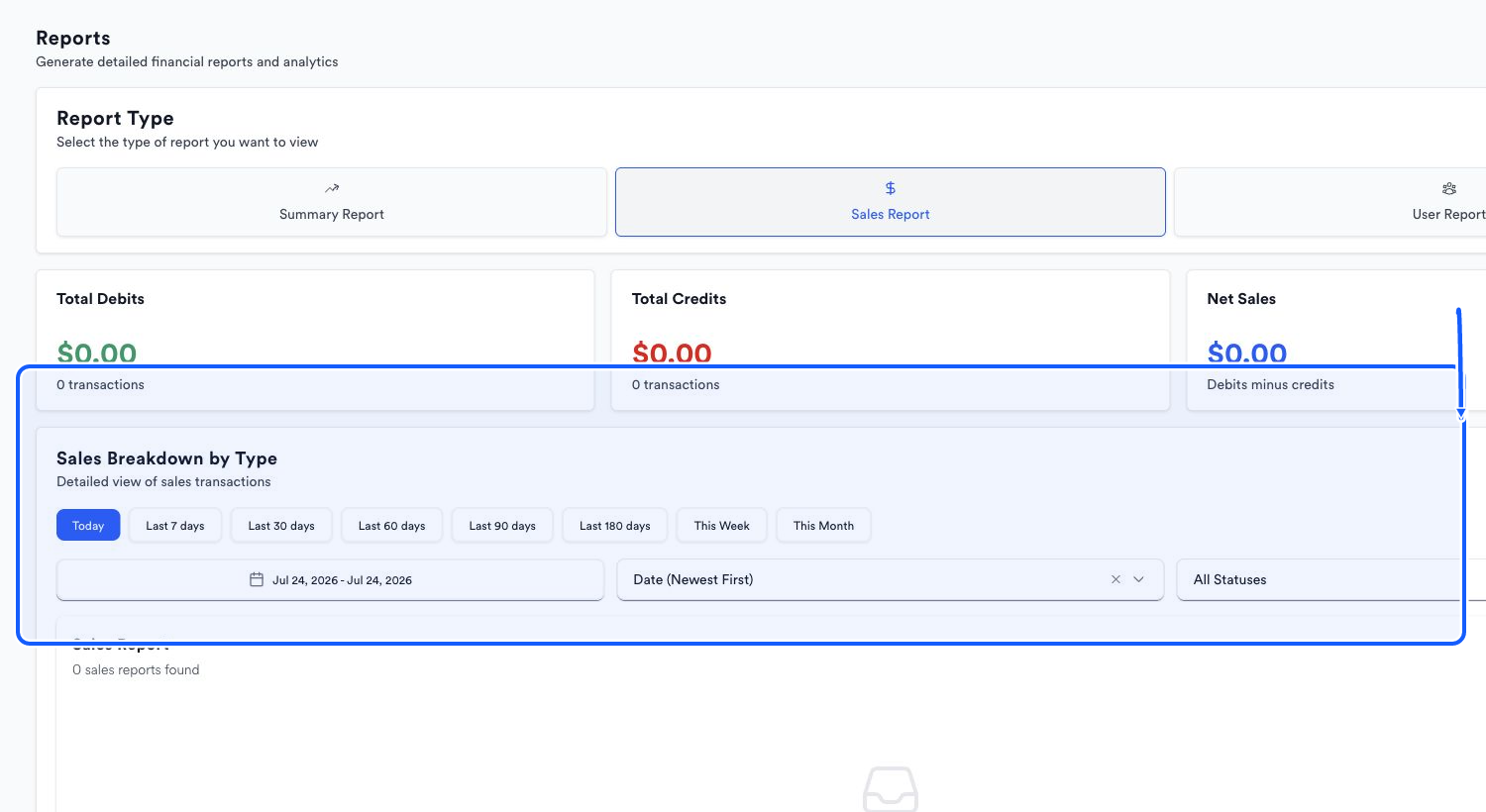
The highlighted area shows where to click. - 3
Export to Excel
Choose Export Excel to download the selected report view.
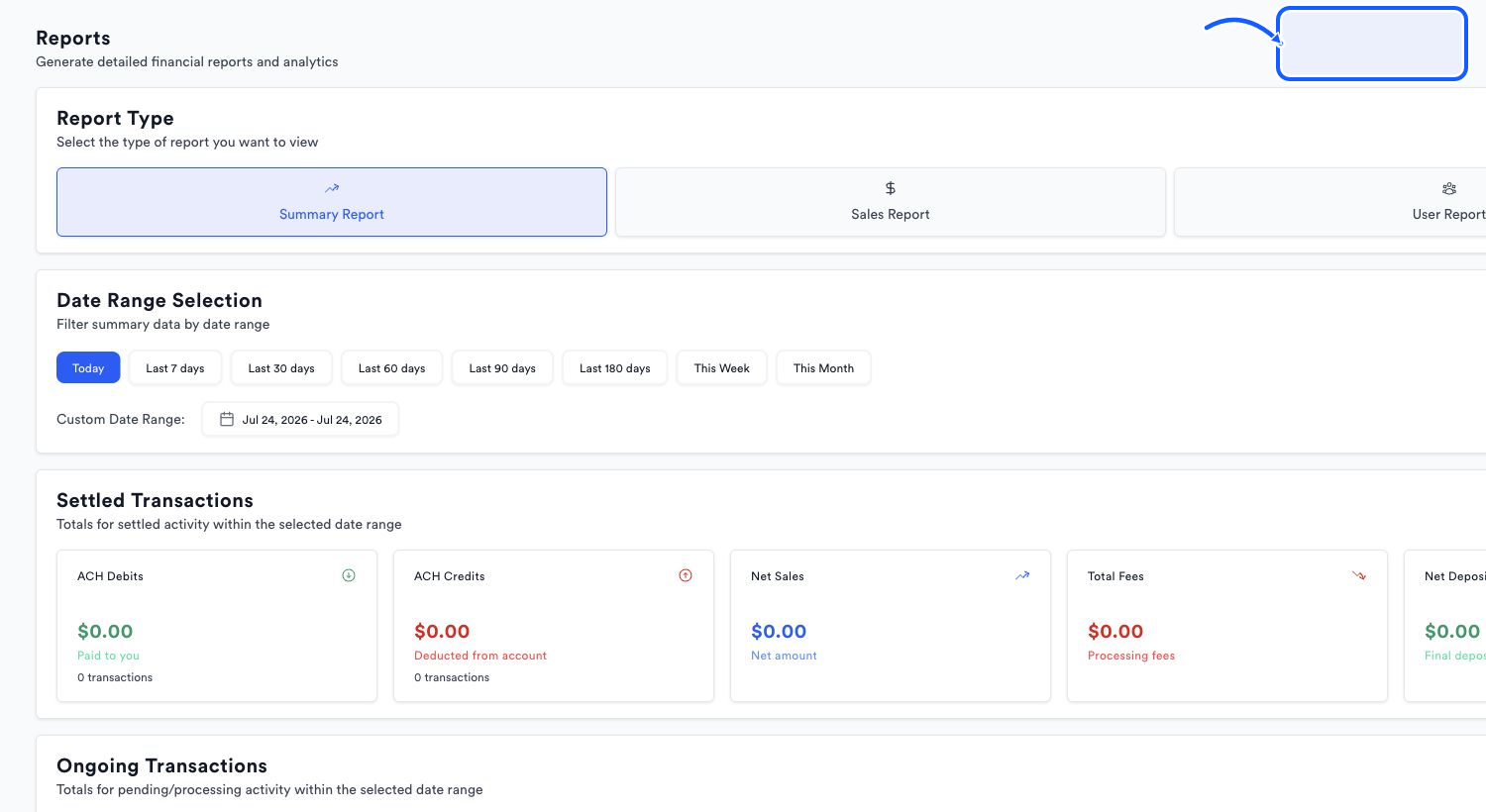
The highlighted area shows where to click.
You're done when
The on-screen report and Excel export answer the intended summary, sales, or user-performance question for the same period.
Common fixes
If the report is empty, confirm the report type, widen the date range, and reset status filters.
If settled totals differ from a broader dashboard total, remember that Summary Report labels its primary cards Settled Transactions.
If a user does not appear, confirm that the User Report period contains activity attributed to that clerk, server, or user.