
Customers & payments
Add and find customers
Create a person or business customer with address and bank details, then find the profile by name or email.
Before you begin
- Who can use this
- Users permitted to view or add customers
- You'll need
- The customer’s profile and address details
- Routing number, account number, account-holder name, and account type
- Your organization’s approved customer and bank-information process
Review the customer workspace
Customers shows Total Customers, Active Accounts, and customers added This Month. Active Accounts is labeled as verified bank accounts.
- 1
Open Customers
Review the summary cards and the All Customers list.
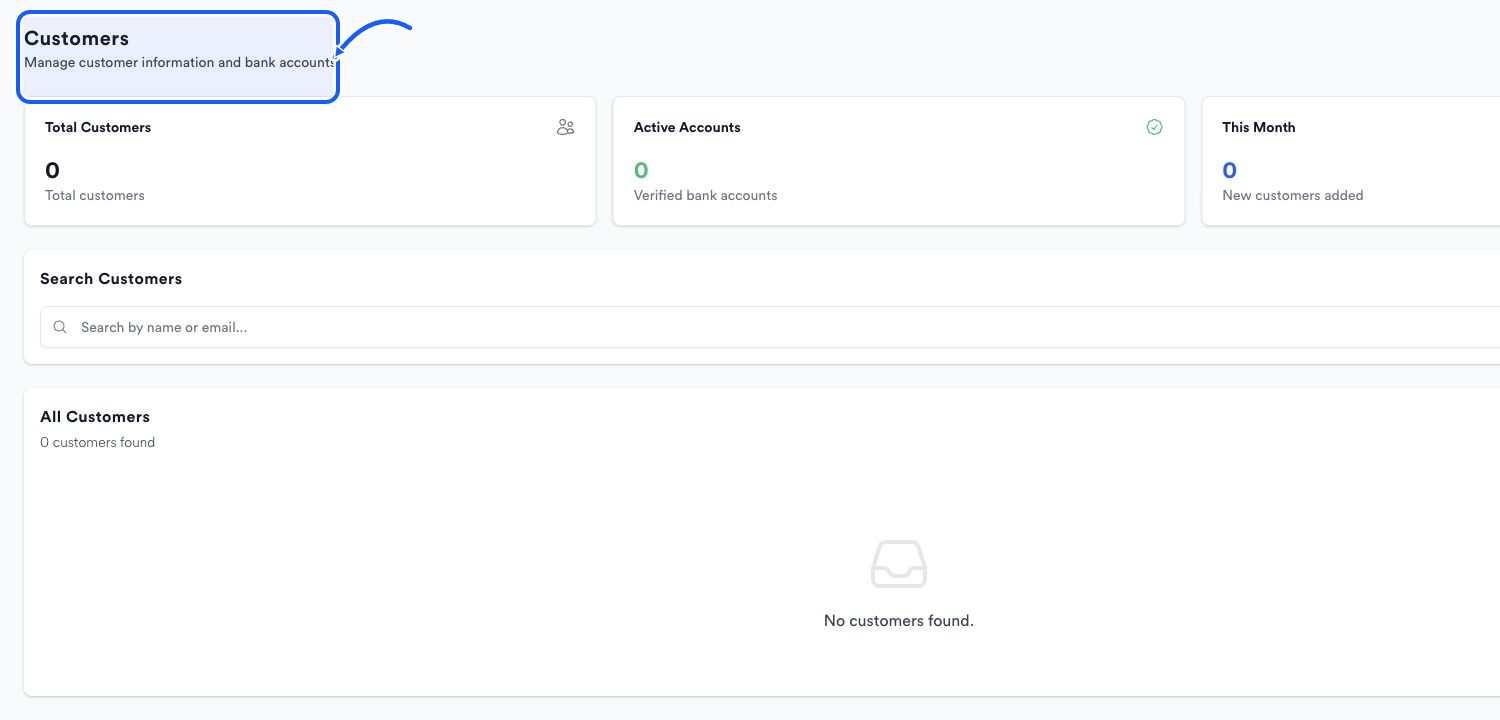
The highlighted area shows where to click. - 2
Search before adding
Use Search Customers to search by name or email and reduce the risk of creating a duplicate.
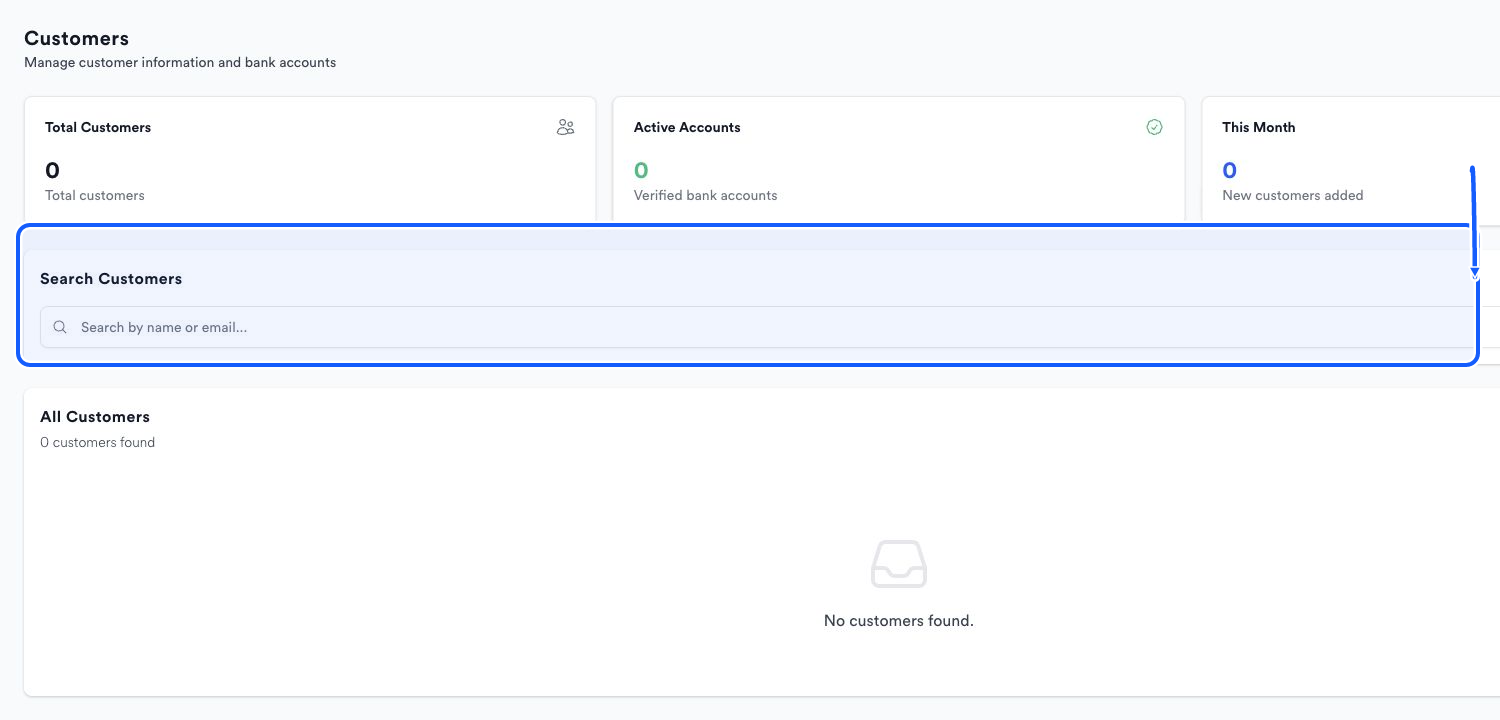
The highlighted area shows where to click. - 3
Start a customer
Choose Add Customer to open Add New Customer.
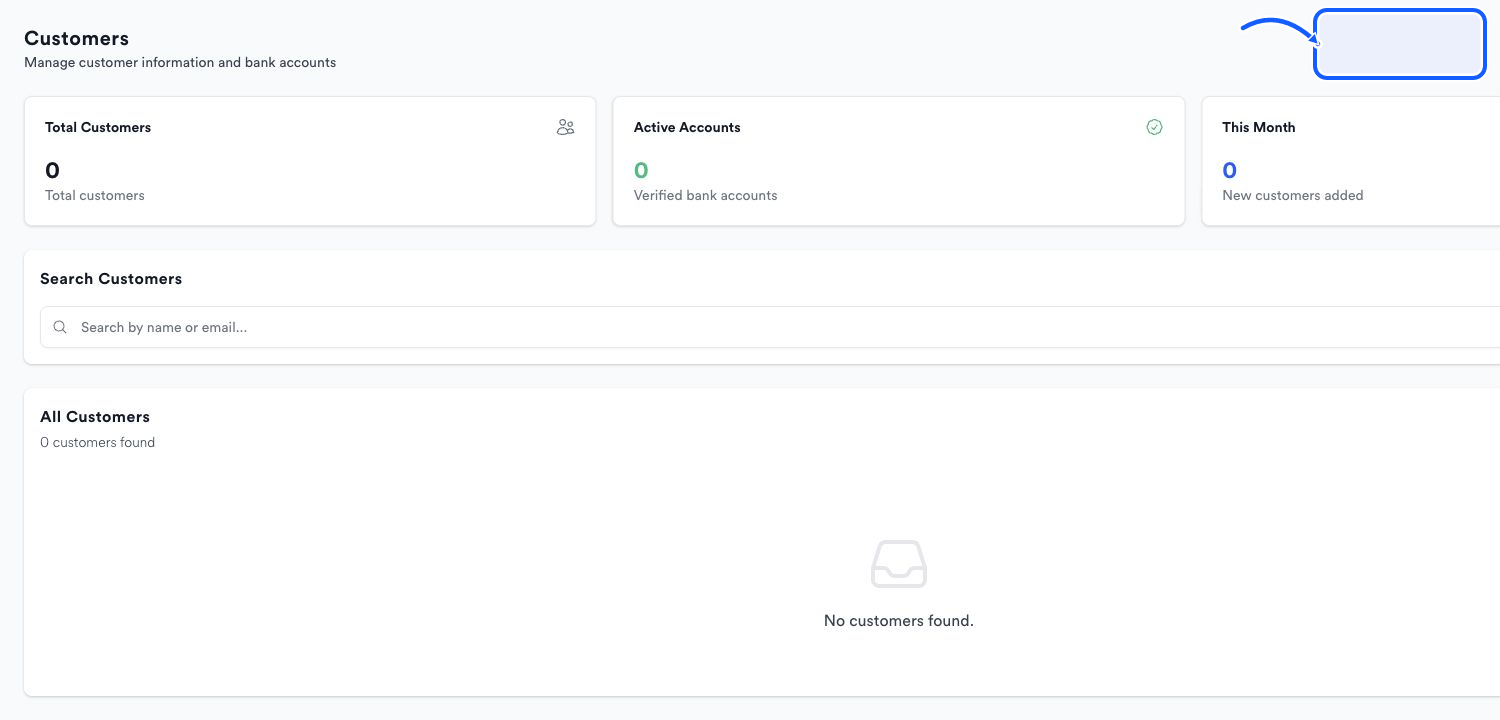
The highlighted area shows where to click.
Enter the customer and bank details
- 1
Choose the customer type
Select Person or Business, then complete the required identity fields shown for that type.
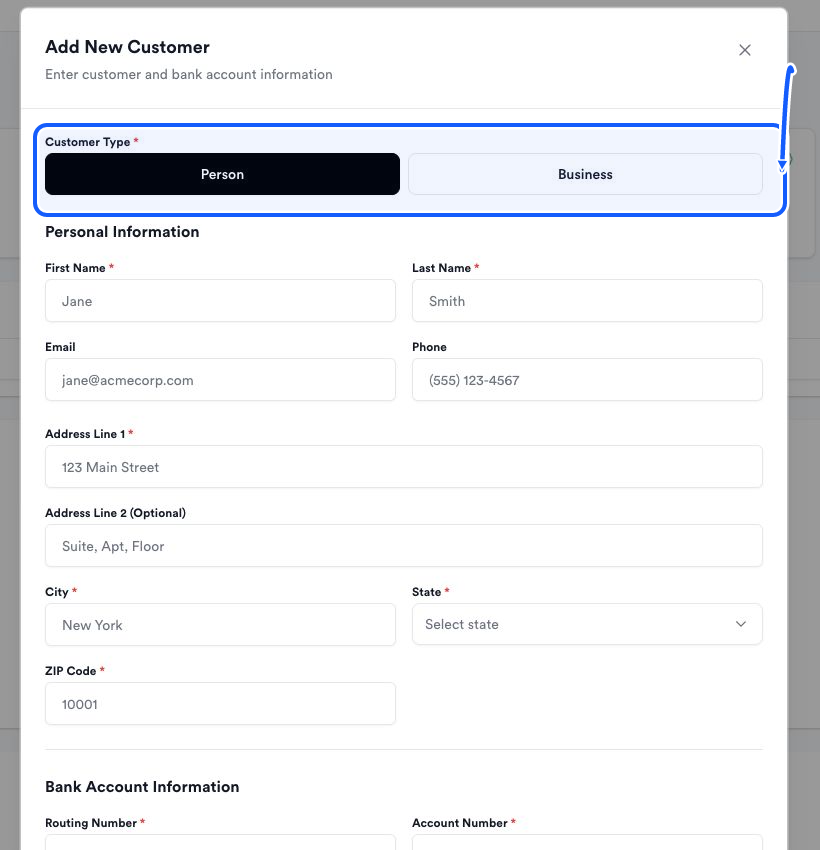
The highlighted area shows where to click. - 2
Complete the address
Enter Address Line 1, City, State, and ZIP Code; Address Line 2 is optional.
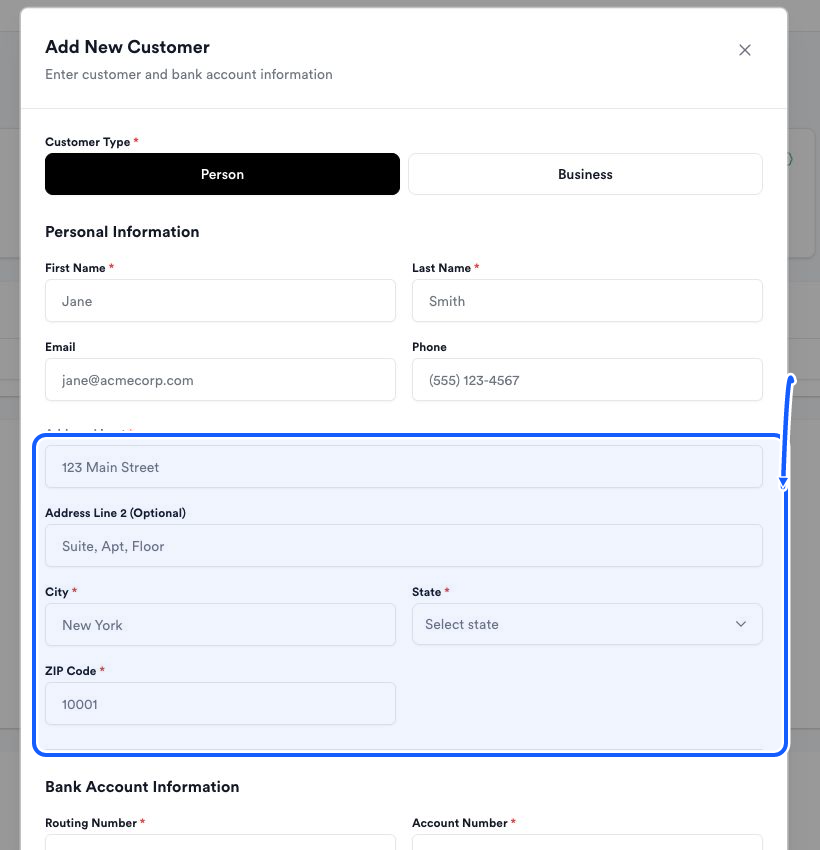
The highlighted area shows where to click. - 3
Add the bank account
Enter Routing Number, Account Number, Account Holder Name, and Account Type exactly as provided.
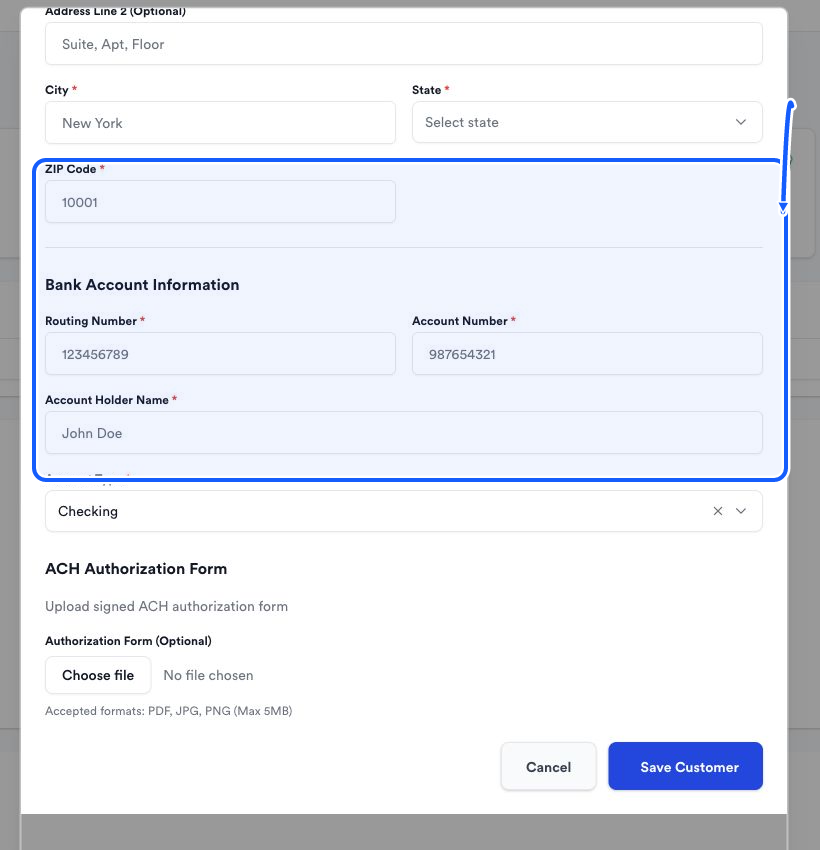
The highlighted area shows where to click. - 4
Attach authorization when used
You can upload an optional Authorization Form in PDF, JPG, or PNG format, up to 5 MB.
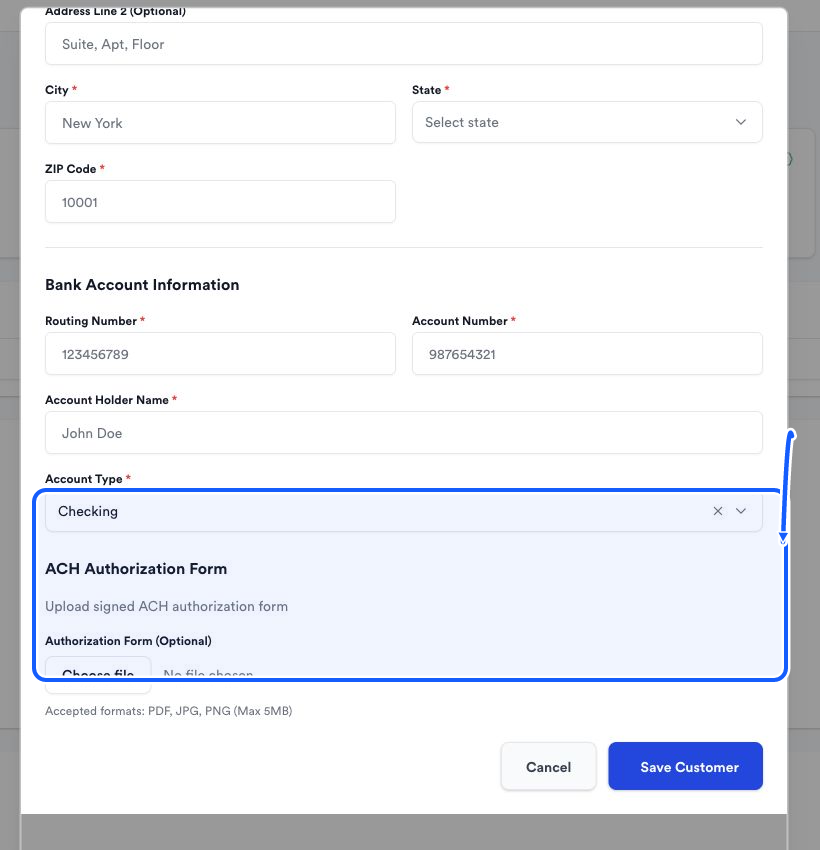
The highlighted area shows where to click. - 5
Review and save
Check the profile, address, and bank fields, then choose Save Customer.
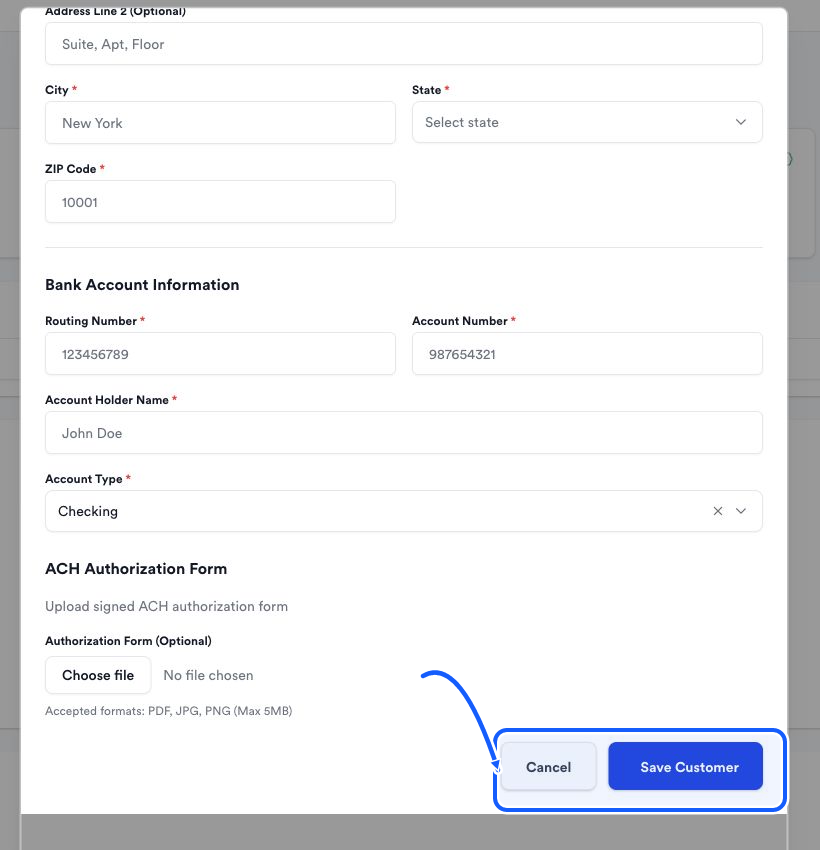
The highlighted area shows where to click.
You're done when
The customer appears in Customers and can be selected from a payment form once the account is available there.
Common fixes
If the customer selector says No customers found, return to Customers and save the customer first.
If Save Customer is unavailable, recheck every field marked with an asterisk.
If an authorization upload fails, confirm that it is PDF, JPG, or PNG and no larger than 5 MB.
If you need to change a saved profile and no edit option is available, use Need Help in Quickvee Pay.