
Customers & payments
Create a one-time ACH payment
Collect money from a customer or send money to a customer with a one-time ACH payment.
Before you begin
- Who can use this
- Users permitted to create ACH payments
- You'll need
- The correct store selected
- An existing customer with bank information available in the customer selector
- A confirmed amount, direction, and internal memo or invoice reference when needed
Build the payment
- 1
Open Create ACH Payment
Choose Create Payment in the sidebar and select the existing Customer.
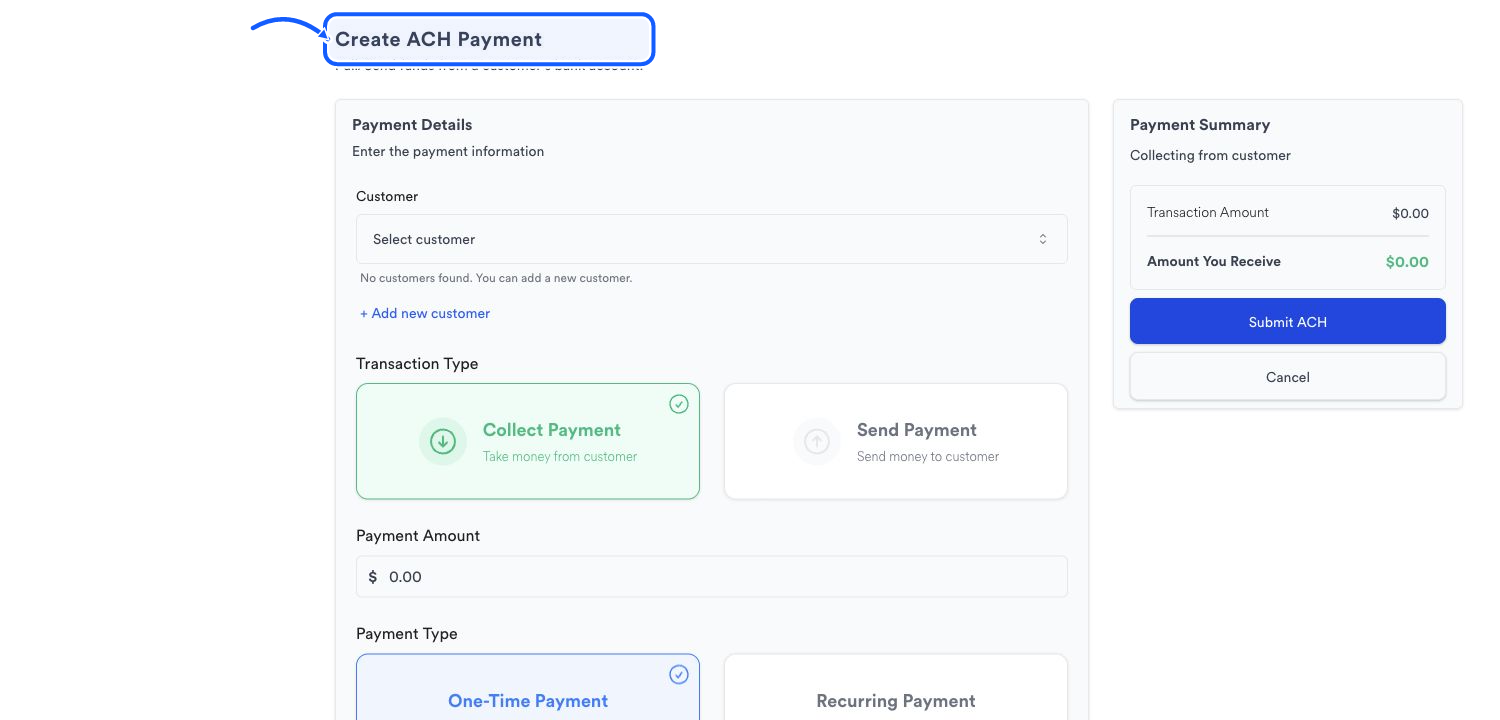
The highlighted area shows where to click. - 2
Choose the direction
Select Collect Payment to take money from the customer, or Send Payment to send money from the merchant to the customer.
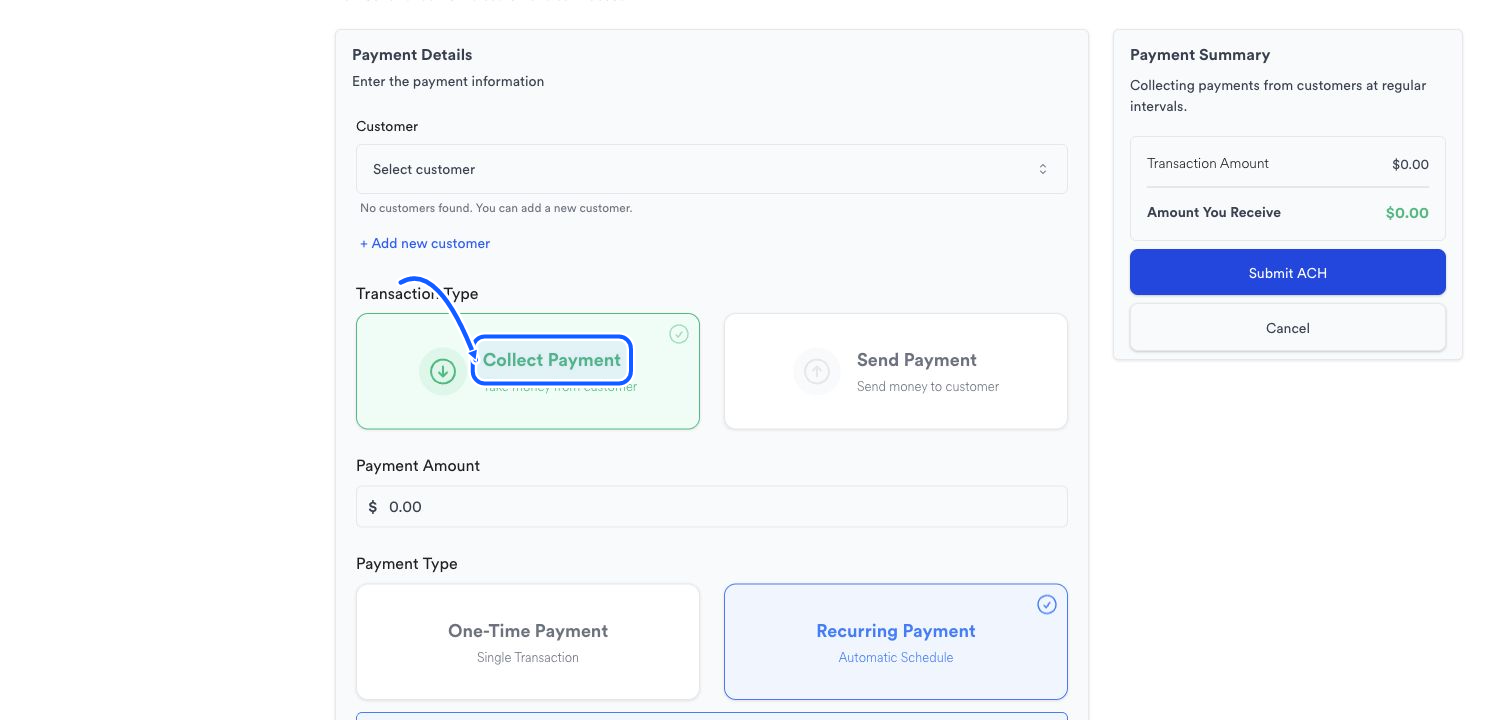
The highlighted area shows where to click. - 3
Enter the amount
Enter the Payment Amount, then choose One-Time Payment under Payment Type.
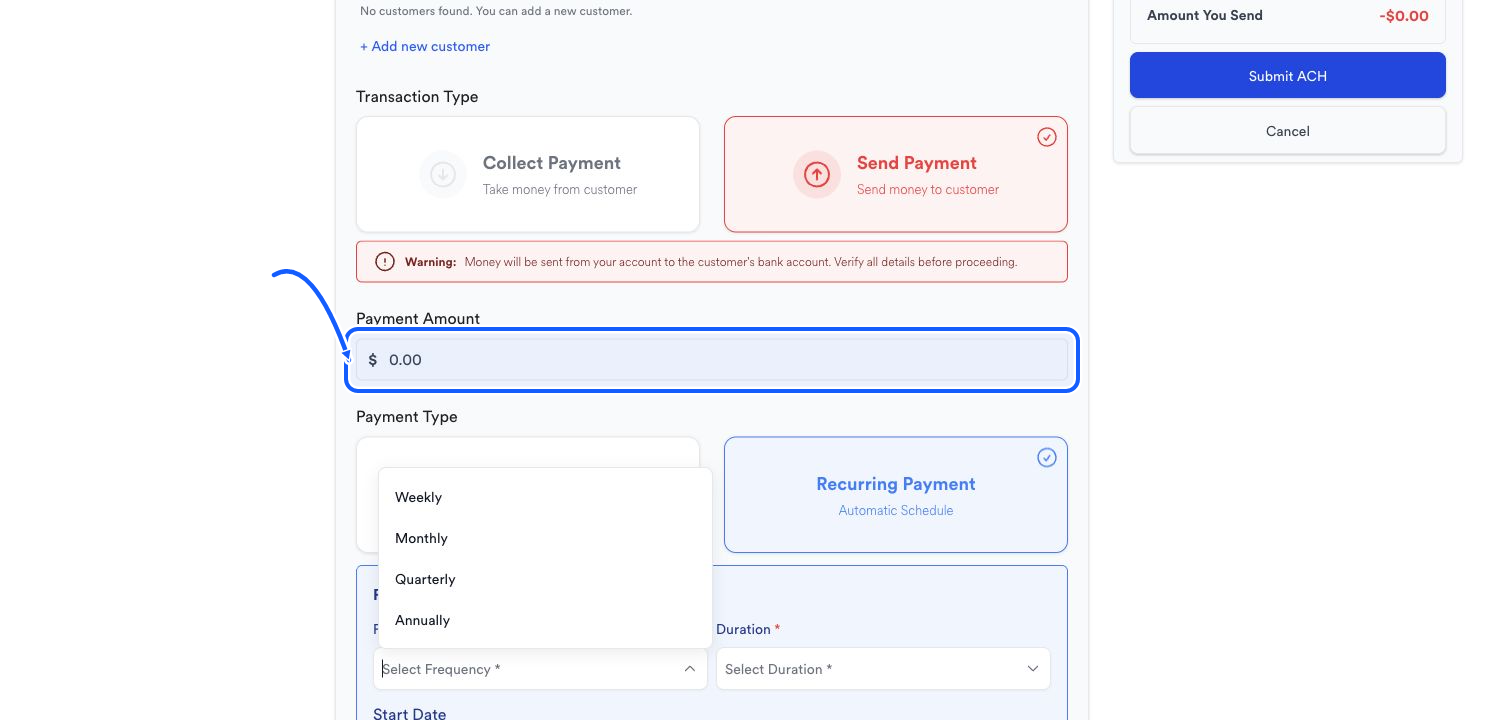
The highlighted area shows where to click. - 4
Review the start date
Confirm the Start Date shown in the one-time payment form.
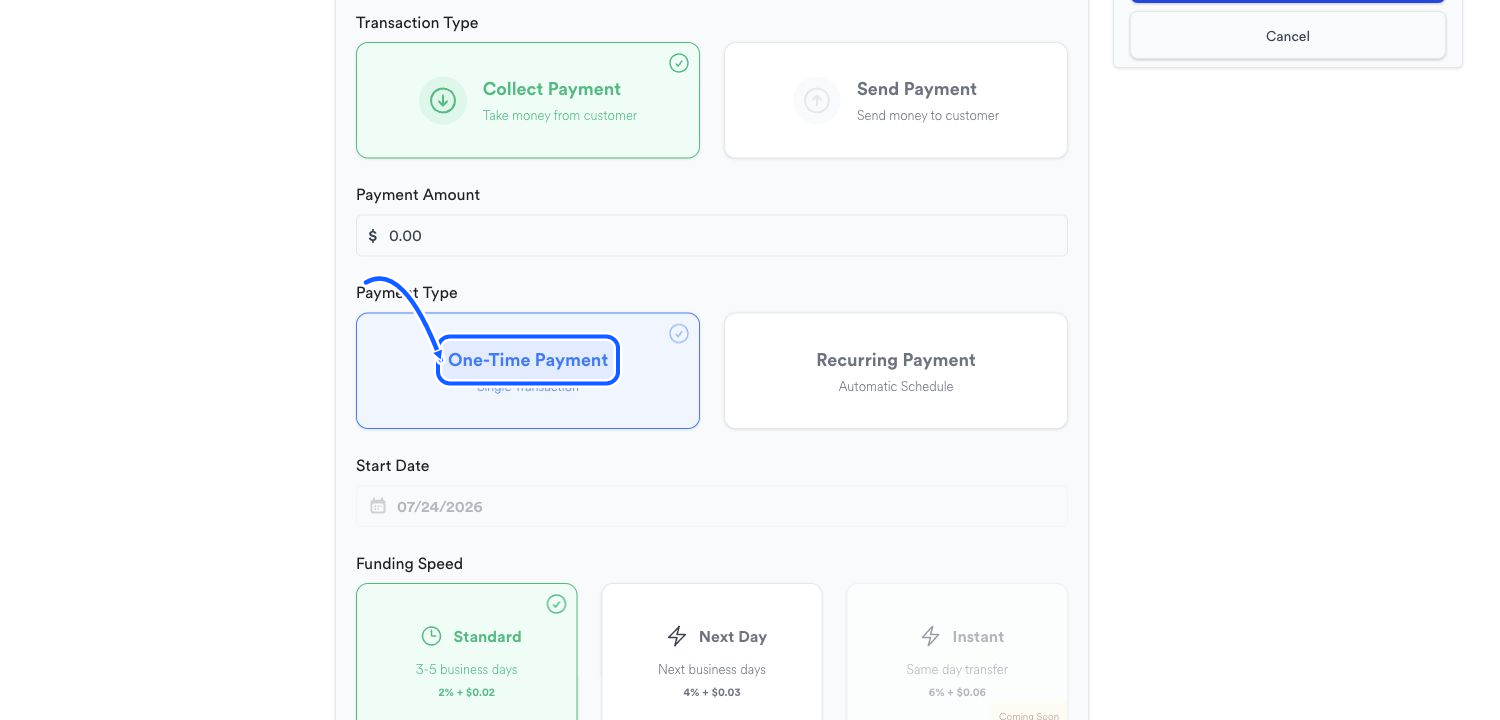
The highlighted area shows where to click.
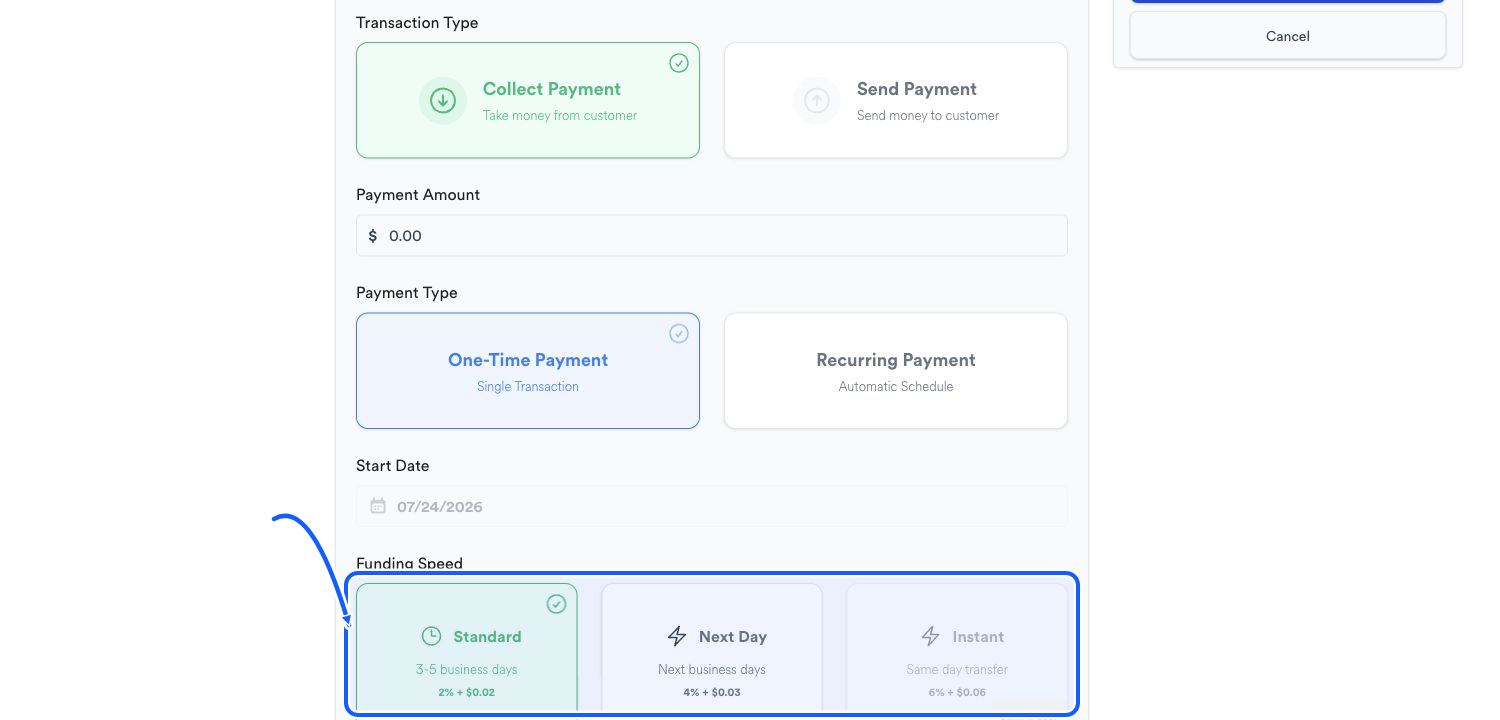
Choose the displayed funding speed
Available funding speeds, timing, and fees appear on the payment form and can vary by account.
- Select a funding-speed card that is available for your account.
- Review the timing and fee shown on the card before continuing.
- Speeds, pricing, and availability can vary by account.
- If Instant is marked Coming Soon, it is not available.
Review before submitting
- 1
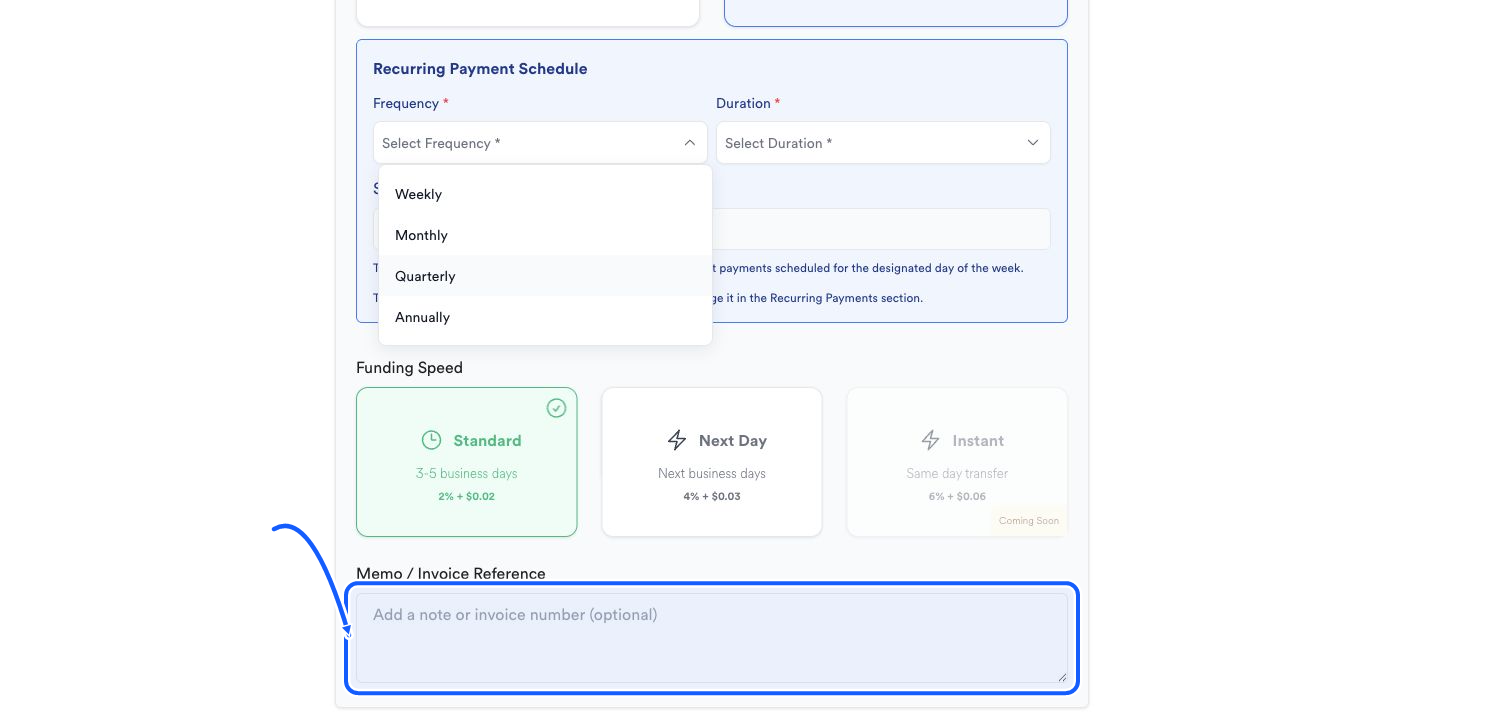
Add an optional reference
Use Memo / Invoice Reference for a note or invoice number when it helps your internal reconciliation.
The highlighted area shows where to click. - 2
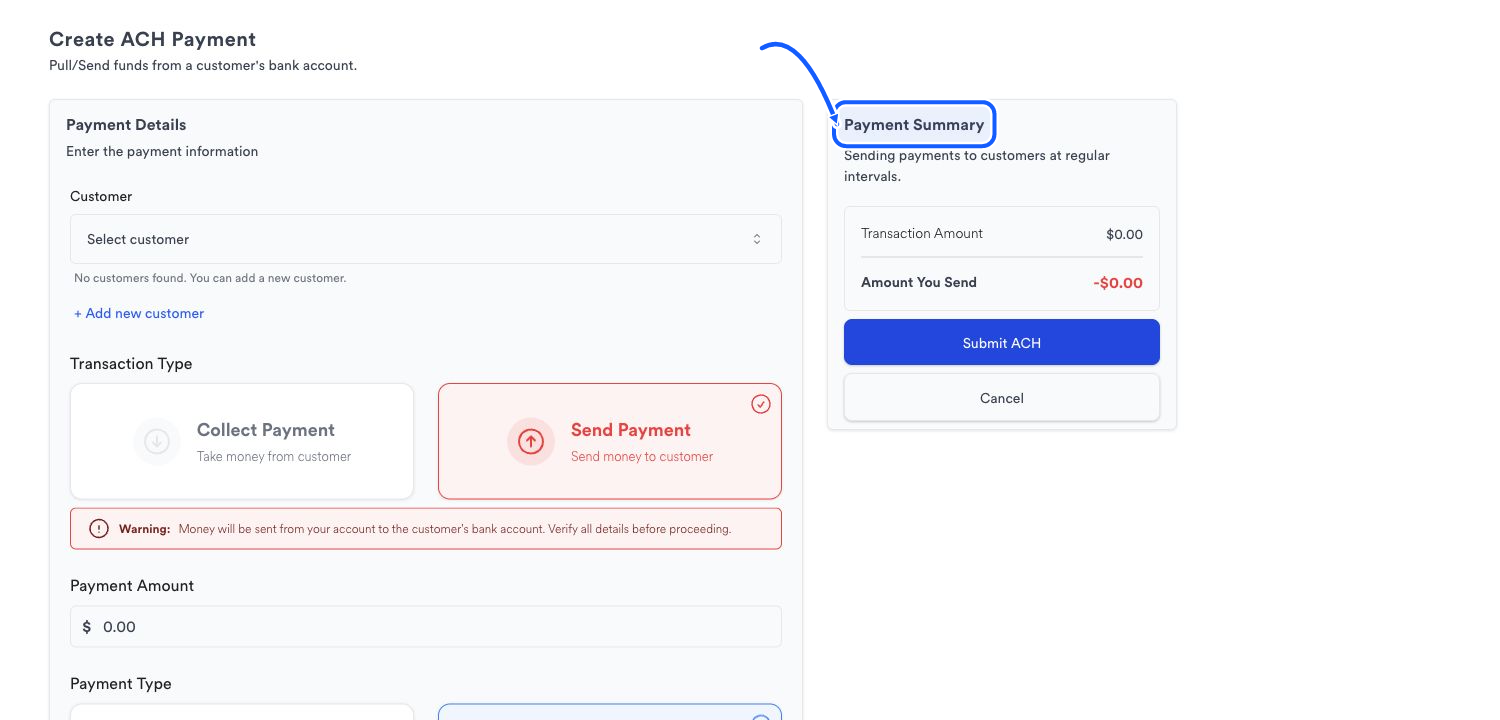
Check Payment Summary
Confirm the transaction direction, Transaction Amount, and Amount You Receive or Amount You Send.
The highlighted area shows where to click. - 3
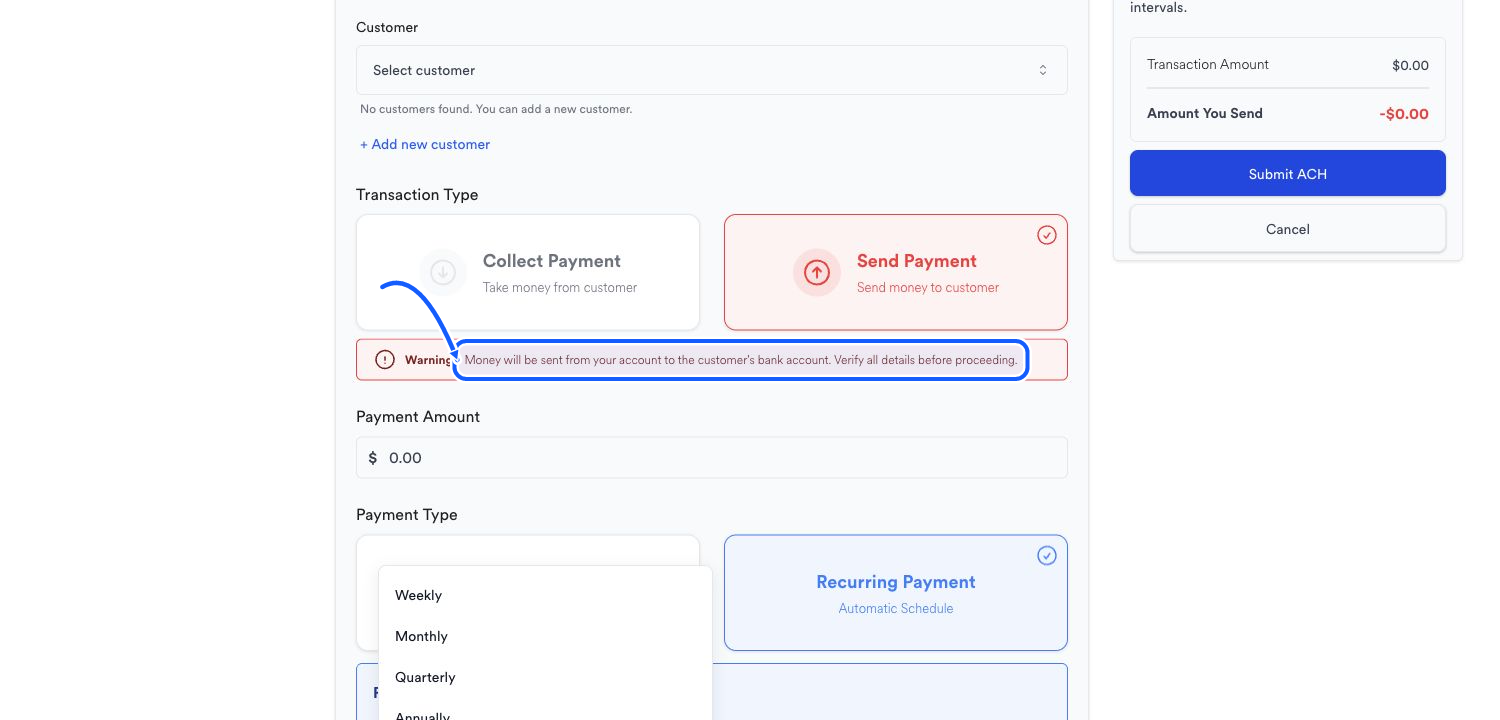
Submit the ACH
Choose Submit ACH only after the customer, amount, direction, date, speed, fee, and summary are correct.
The highlighted area shows where to click.
You're done when
A single ACH transaction is submitted with the intended customer, direction, amount, date, speed, and memo.
Common fixes
If no customer is available, use Add new customer in the form or complete the customer guide first.
If the summary says Amount You Send when you intended to collect, change the Transaction Type before submitting.
If a speed is disabled or marked Coming Soon, choose an enabled option shown for the merchant.
After submission, use Transactions to locate the record by customer, ID, or memo and review its status.