
Start here
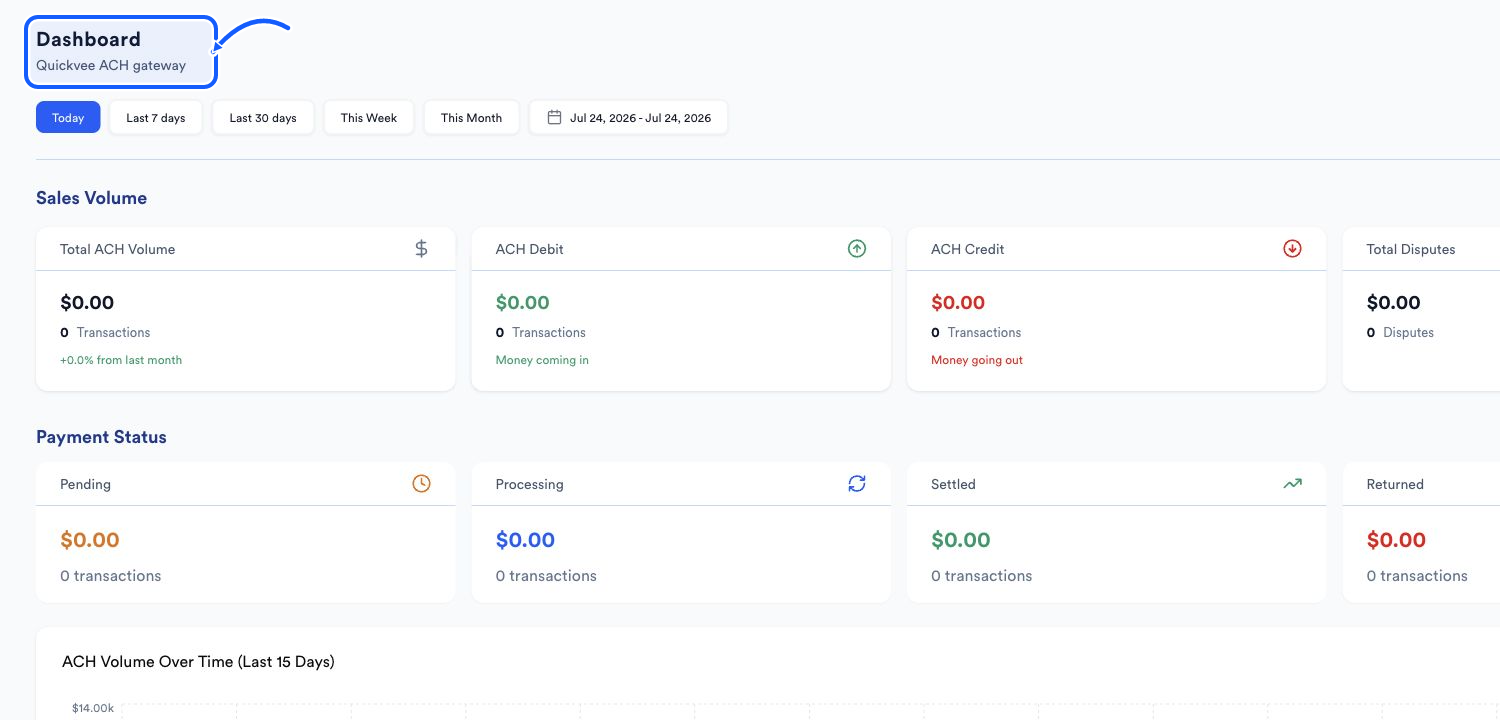
Tour the dashboard and navigation
Read the dashboard’s ACH volume and status cards, change the date range, and switch stores safely.
Before you begin
- Who can use this
- All Quickvee Pay dashboard users
- You'll need
- Access to at least one Quickvee Pay store
- A known reporting period to review
Read the Dashboard
- 1
Set the reporting period
Use Today, Last 7 days, Last 30 days, This Week, This Month, or the displayed custom date control.
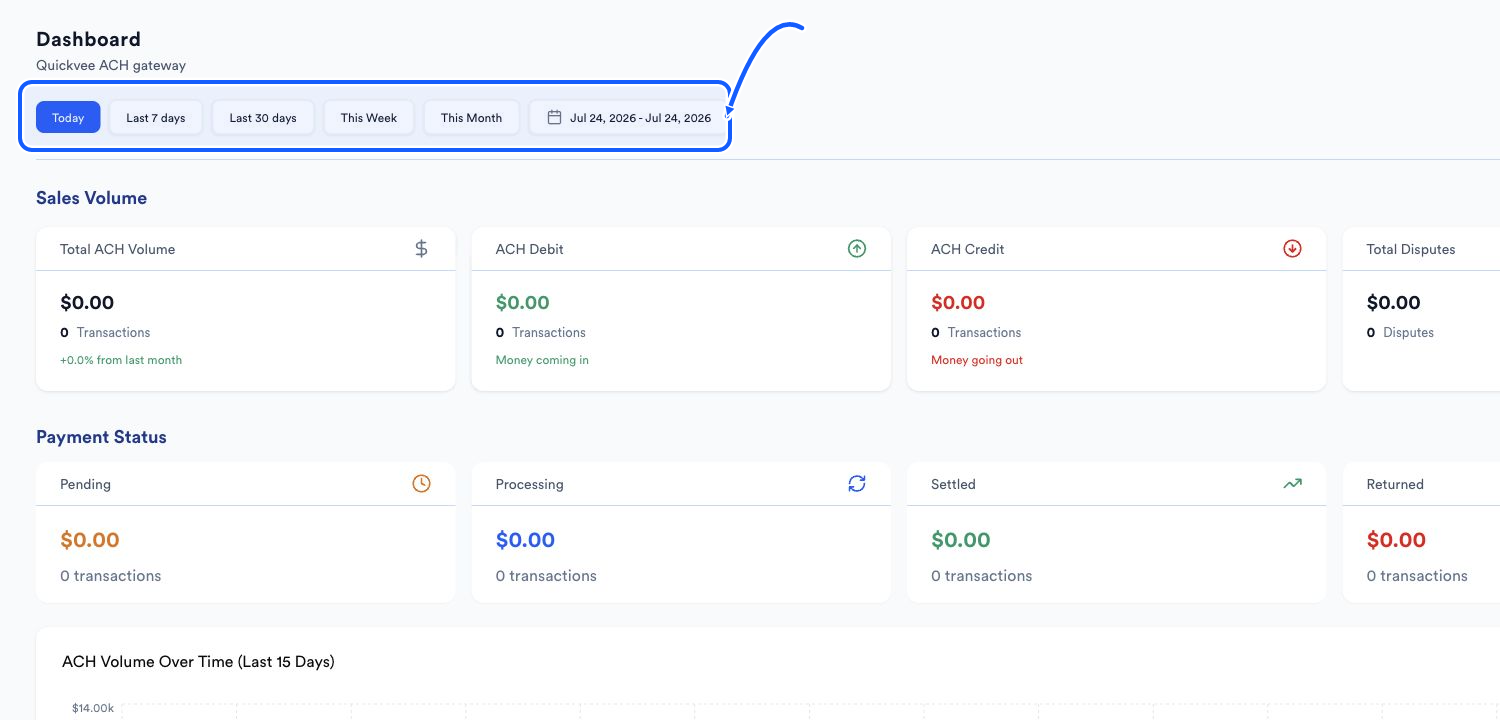
The highlighted area shows where to click. - 2
Read Sales Volume
Compare Total ACH Volume, ACH Debit, ACH Credit, and Total Disputes. ACH Debit is labeled money coming in; ACH Credit is labeled money going out.
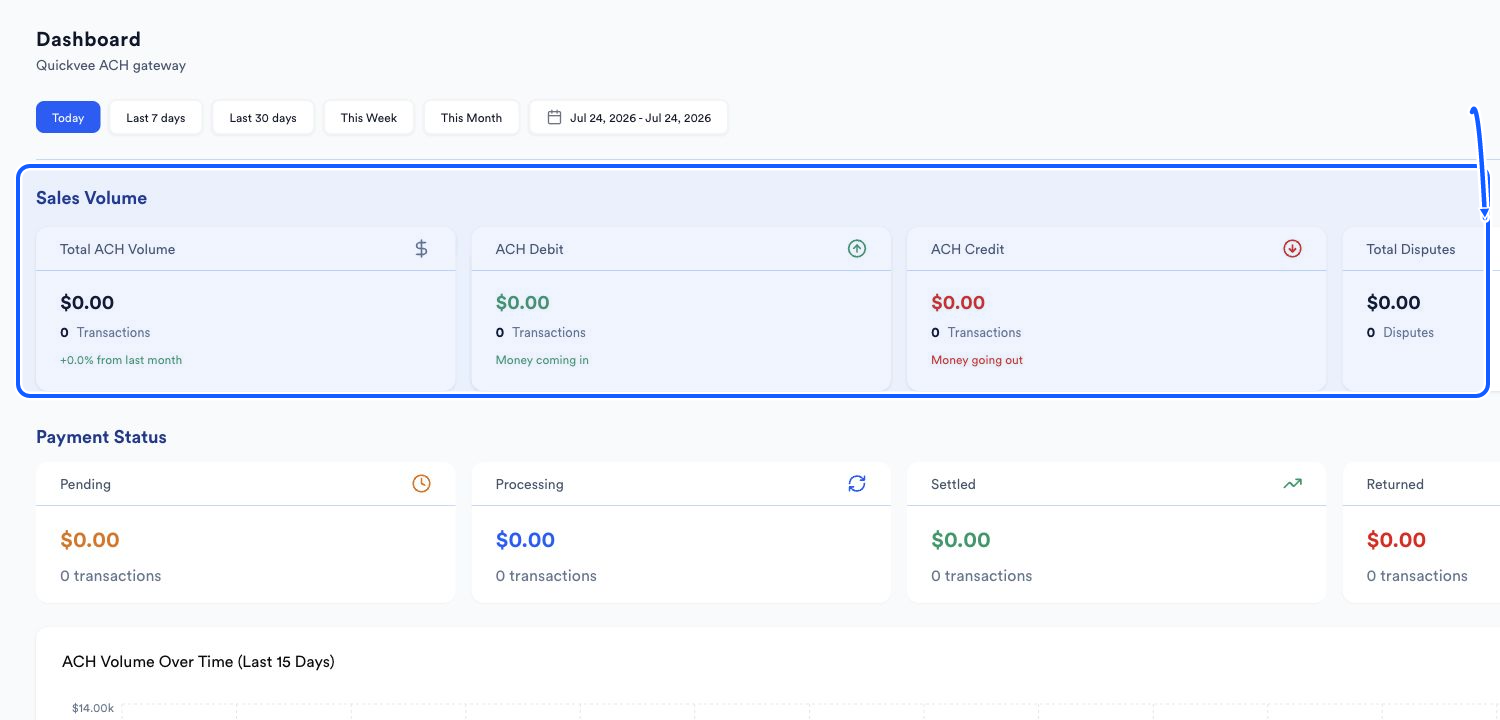
The highlighted area shows where to click. - 3
Read Payment Status
Review the Pending, Processing, Settled, and Returned amounts and transaction counts for the selected period.
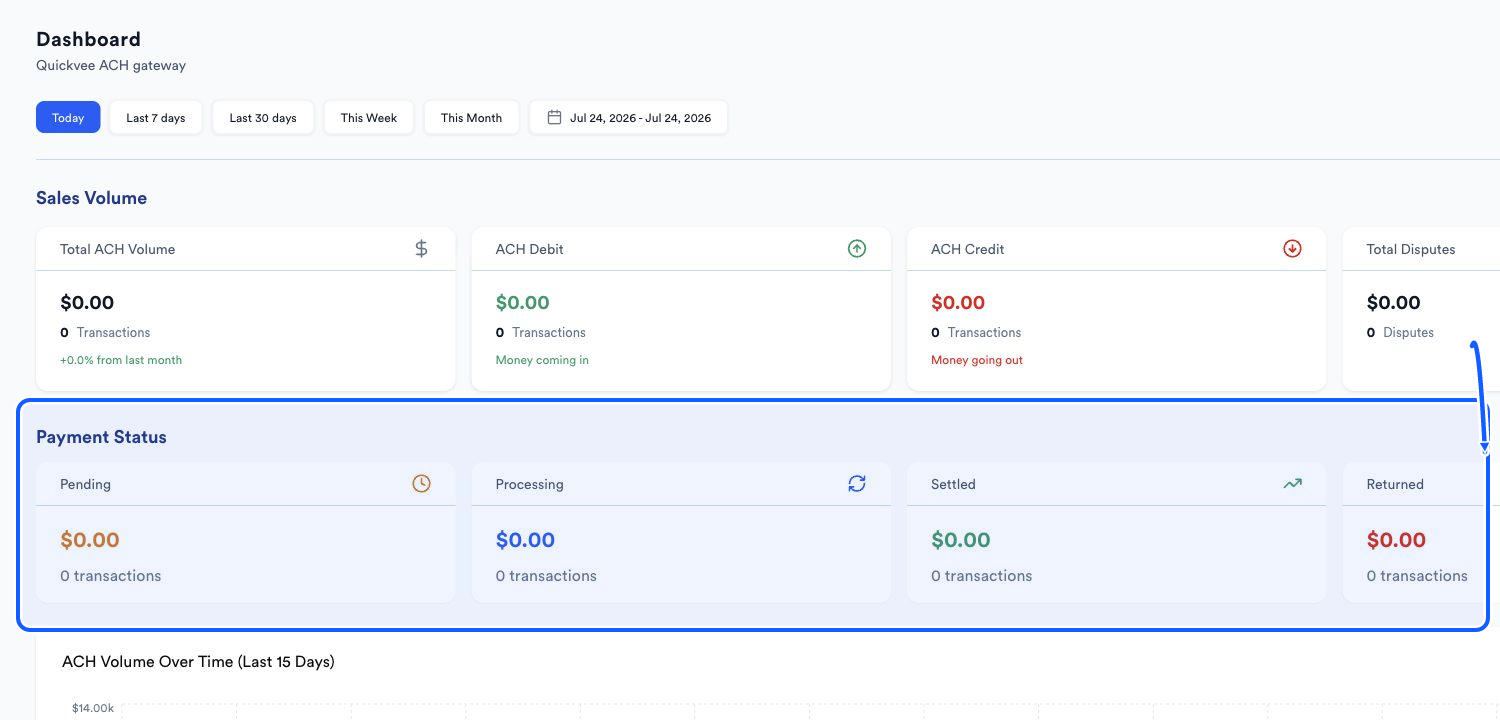
The highlighted area shows where to click.
Move to the underlying work
- 1
Switch stores before acting
Open the selector at the top of the sidebar, search when necessary, and choose the intended store.
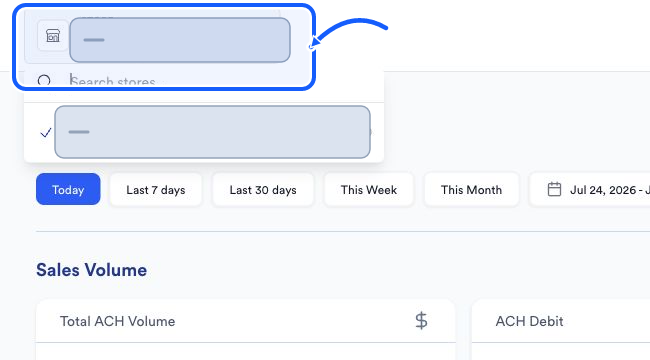
The highlighted area shows where to click. - 2
Open a detailed page
Use Transactions, Deposits, Returns, or Disputes when you need to review individual records behind a dashboard total.
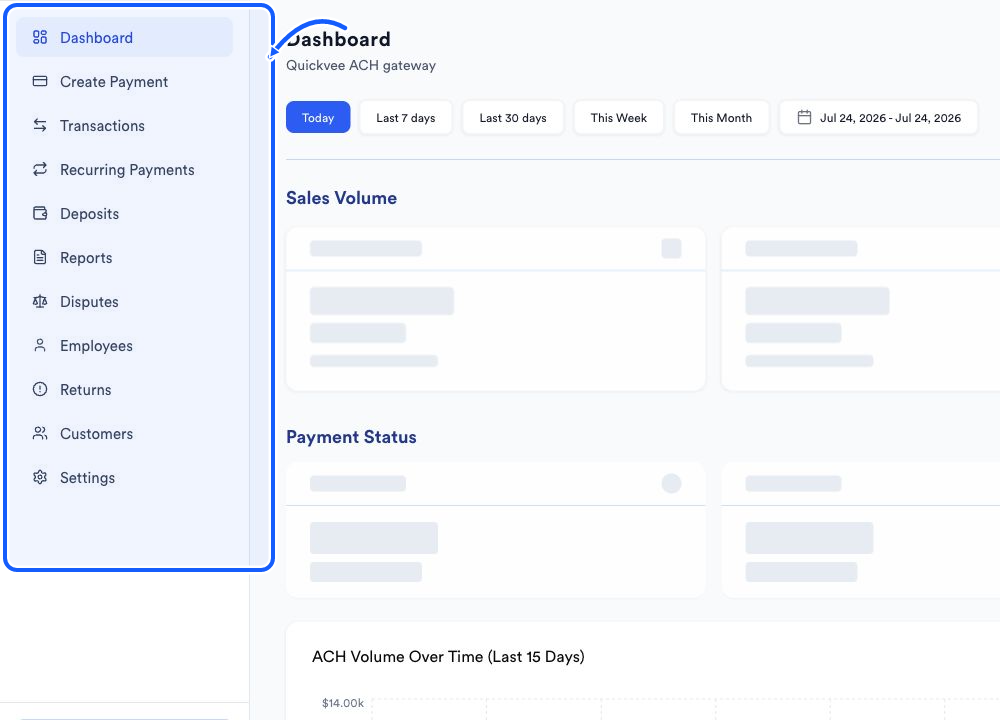
The highlighted area shows where to click. - 3
Open developer Documentation
Use the account menu and choose Documentation to open the API guides and reference.
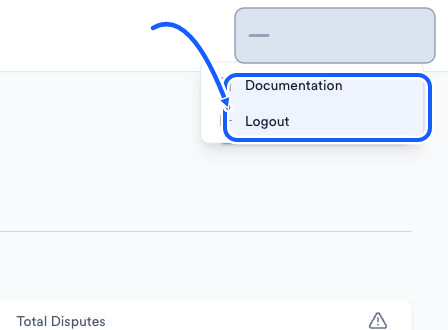
The highlighted area shows where to click.
You're done when
The active store and reporting period are correct, and you know which detailed page to open for the metric you are reviewing.
Common fixes
If all cards show zero, try a wider period and confirm that the selected store has ACH activity.
If a status total and a list do not appear to match, duplicate the date and status filters on the detailed page.
If the wrong store was selected, stop before creating a payment and switch stores first.